Audit log and bundle export
The Activity view (Every visit and order, on the record.) lists every signed record Sill has written for the selected site: agent visits in Discovery mode, and every order decision in Transactional mode. Each record is signed and chained to the one before it, so nobody, including Sill, can change or remove one without it showing. You can export any record as a signed audit bundle that anyone can verify.
Open Activity in the top navigation.
Find a record
Section titled “Find a record”- The badge at the top right shows what the site has: DISCOVERY, TRANSACTIONAL or DISCOVERY + TRANSACTIONAL.
- The list shows one row per agent or bot, with filters for AI AGENTS, SEARCH, SEO & TOOLS, SUSPICIOUS, ORDERS and PEOPLE. How to read rows, filters and Probing alerts is covered in Visits panel.
- SHOW EVERY VISIT lists one row per signed record instead.
- Search by id, signature, hash, agent name (for example
gemini) or action (for exampleplace_order).
Orders, refunds and other signed actions each keep their own row with an outcome pill. Choose ORDERS to see only those.
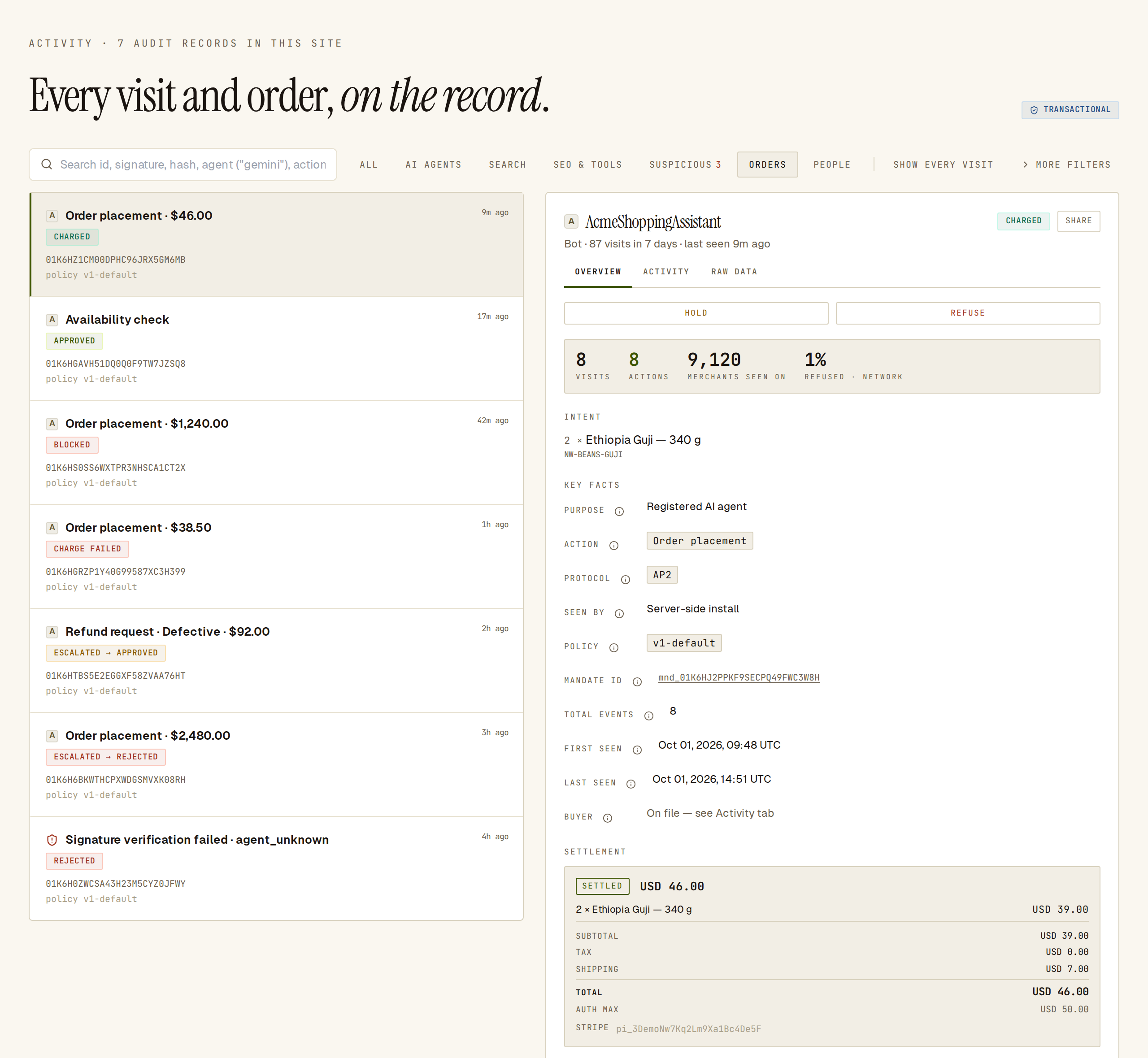 Each order row shows one outcome pill. Open it to see the intent, the rules and the settlement.
What each outcome means
Section titled “What each outcome means”| Pill | What happened |
|---|---|
| OBSERVED | An agent visited (Discovery). No order involved. Visits show no pill in the list; filter on it under MORE FILTERS → STATUS. |
| APPROVED | The order passed your rules. No charge is attached to this record. |
| CHARGED | The order passed and the payment settled. |
| BLOCKED | The order passed your rules but was stopped at the charge, for example by an organization or per-user spend cap. No money moved; the detail names the reason. |
| CHARGE FAILED | The payment was declined. |
| REJECTED | A rule rejected the order. |
| ESCALATED → APPROVED / ESCALATED → REJECTED | A rule held the order and a person approved or rejected it in Held orders. |
Read a record
Section titled “Read a record”Click a row to open its detail. It has three tabs.
OVERVIEW — who the agent is and what it did:
- Under the name, a short description of the agent, and an identity mark (Confirmed or Mismatch) when Sill could check it.
- Counts for this agent: VISITS, plus ACTIONS if it has placed orders and, where Sill has seen it elsewhere, MERCHANTS SEEN ON, MERCHANTS FLAGGED and network-wide refusal and spoof rates.
- Key facts: location, page visited, action, Protocol (Web (HTTP) for an ordinary page visit), Seen by (which part of your install recorded it), policy, and first and last seen.
- View all activity for this agent lists every visit from this agent.
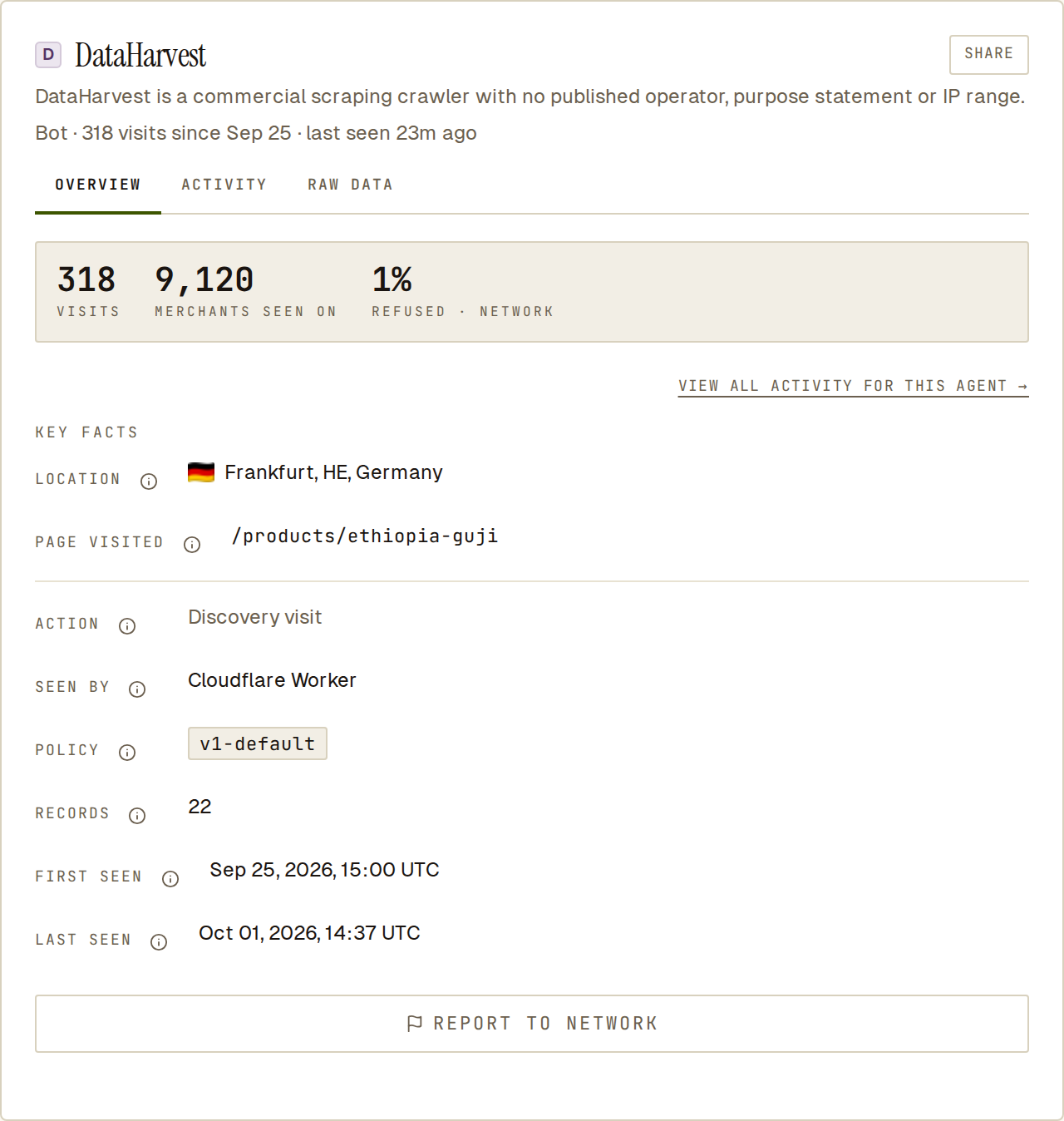 For an unfamiliar crawler, the description under the name says what it is.
ACTIVITY — the agent’s visits grouped into sessions and, for orders, the rules that were checked and the one that fired.
RAW DATA — how the visit was checked, in plain words (Identity check, Seen by, Tamper-proof: Sill signed this log entry), then the signed record’s values and the export buttons.
Export a signed bundle
Section titled “Export a signed bundle”- Open a record and go to RAW DATA.
- Click Export JSON for the signed bundle as JSON, or Audit bundle for a readable HTML version with the same signed JSON inside it.
A bundle contains every record for the same site, record type and UTC day, under one signature, so exporting from any record in that day returns the whole day. The HTML version highlights the record you opened.
Files are named sill-audit-{domain}-{YYYY-MM-DD}-{discovery|transactional}-{id}.{html|json}, for example sill-audit-northwind-coffee.example-2026-09-30-transactional-7k2mqx.html. The date is the UTC day the bundle covers; {id} is the end of the record ID you exported from, so exports from the same day don’t overwrite each other.
Large days are split into parts
Section titled “Large days are split into parts”A day with more than 1,000 records is exported in parts of 1,000. The download is the part that contains the record you opened; its cover reads, for example, Part 2 of 3 · records 1,001–2,000 of 2,501. A note under the export buttons lists the other parts, each with its own Download part button, in the same format. Each part is signed on its own and can be checked without the others.
Part files add the part to the name: sill-audit-{domain}-{YYYY-MM-DD}-{discovery|transactional}-part-{k}-of-{n}-{id}.{html|json}.
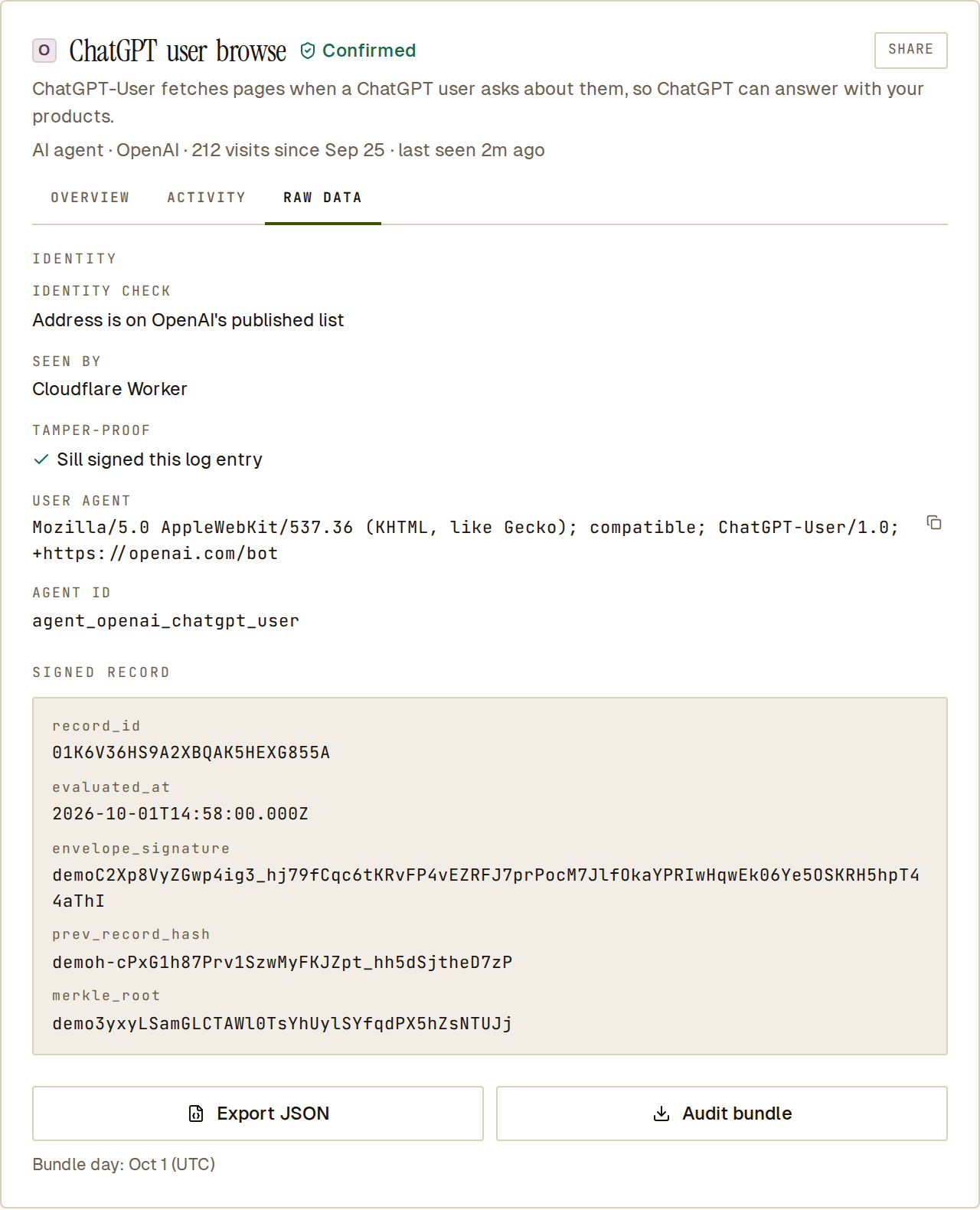 Export from the RAW DATA tab.
If no day root covered the records when you exported, the HTML shows a Pending anchor badge. This happens when the records were written after the day’s root was last updated (export again later to include it), or when they reached Sill after their day was sealed. The records and their signatures are valid either way.
Check a bundle is genuine
Section titled “Check a bundle is genuine”Drop the HTML bundle (from Audit bundle) on sill.so/verify; the verifier accepts the HTML file, not the JSON. The check runs entirely in your browser and the file is never uploaded. It checks the bundle’s signature against Sill’s published audit key at https://sill.so/.well-known/sill-audit-envelope-v1.pub, each record’s signature, and the chain between records. If any byte was changed, verification fails.
To do the same yourself with standard tools, see Verify a signature and Audit envelope.
Export through the API
Section titled “Export through the API”The same bundle is available from GET /v1/audit/{record_id}/bundle:
| Format | Request | What you get |
|---|---|---|
| Signed JSON | default, or ?format=json | The signed bundle. |
| HTML | ?format=html | A readable report with the signed JSON embedded. Same signature as the JSON. |
| OCSF 1.3.0 NDJSON | ?format=ocsf | One OCSF Authorization Activity event per line, for SIEM tools such as Splunk, IBM QRadar or Amazon Security Lake. This file is not signed itself; each line keeps the original record’s signature and chain values. |
On a day with more than 1,000 records, every format returns one part: the part holding record_id by default, or ?part={k} for part k. GET /v1/audit/{record_id}/bundle/parts returns the day’s record count, the number of parts, which part holds the record, and each part’s record range. Asking for a part that does not exist returns 404.
Downloads use the same file name as the dashboard, with .ndjson for OCSF. A record_id from another account returns 404. See API endpoints.
Common questions
Section titled “Common questions”Can I export a single record on its own? No. The signed unit is the day’s batch for one site and record type, so you always get the whole batch, or on a day with more than 1,000 records, the part that contains your record. The HTML marks your record within it.
Is there a PDF export? No. Use the HTML bundle and print it if you need a PDF.
Which key signs bundles?
Sill’s audit key, published at https://sill.so/.well-known/sill-audit-envelope-v1.pub. It is separate from the key that signs agent cards and catalogs.
What happens to records when I remove a site? They stay stored on Sill’s servers. Removing a site stops recording; it does not erase past records. Contact support if you need an export of a removed site’s records.
See also
Section titled “See also”- Visits panel — rows, filters and Probing alerts.
- Audit envelope — what a signed record contains.
- Verify a signature — the verification recipe.
- Held orders — where escalated orders are resolved.
- Rules — the rules behind each decision.