Sites and onboarding
A site is one domain you add to Sill. Each site gets its own site key, skills, guardrails and audit log. Adding a site takes you through a four-step onboarding flow; once you verify the domain, Sill starts recording agent visits and publishes a signed agent card, MCP server and ARD catalog for it.
The Sites overview
Section titled “The Sites overview”Open your account menu (your initial, top right) and choose All sites. The page (All your sites, one front door.) shows one card per site, a setup guide for your most advanced site, and an Add site button.
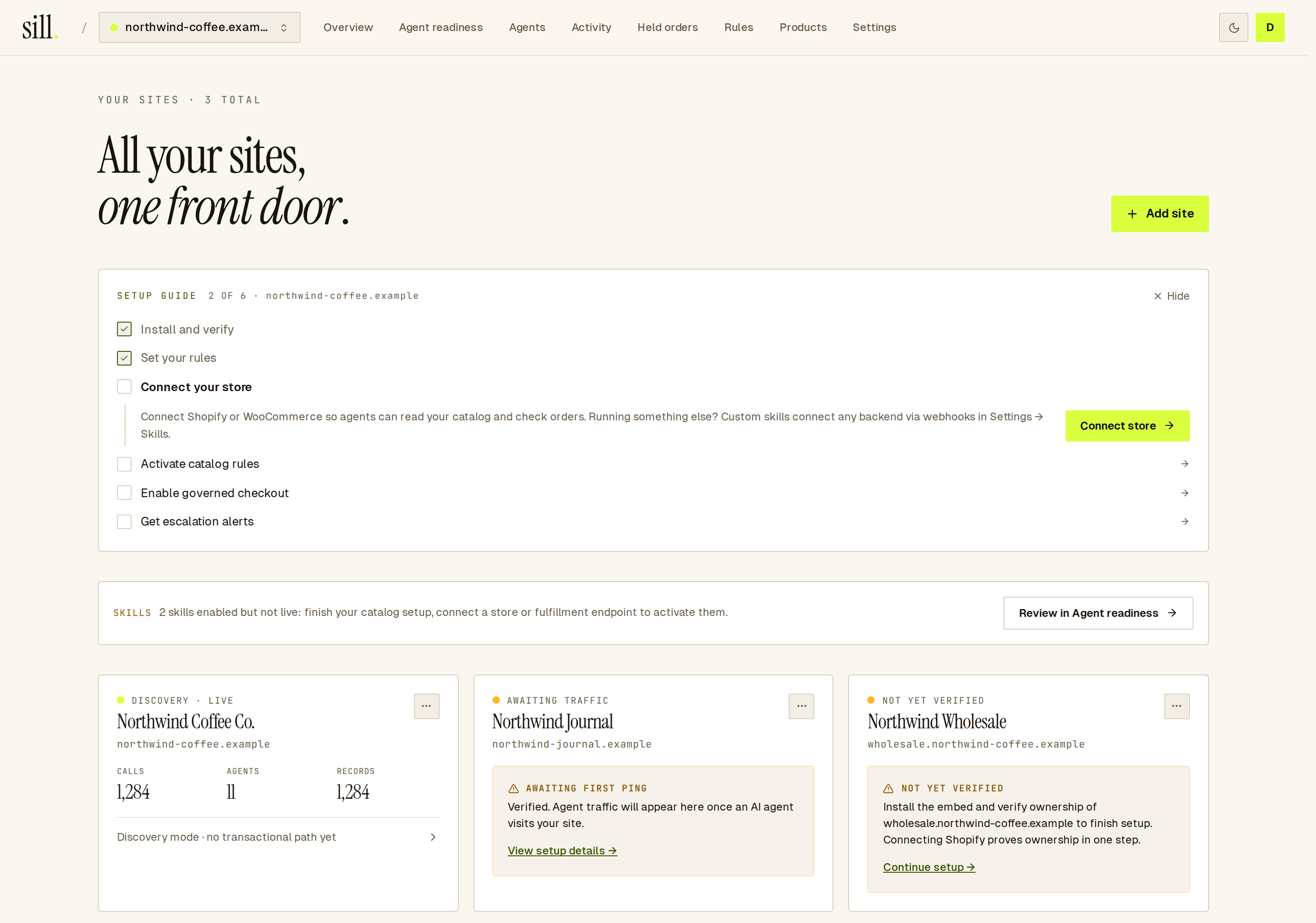 Three sites in different states, with the setup guide pointing at the next step.
Add a site
Section titled “Add a site”Click Add site (owners and admins; reviewers and viewers don’t see the button). Onboarding has four steps; your progress is saved, so you can close the tab and come back.
flowchart LR
  A[1 · Domain] --> B[2 · Skills]
  B --> C[3 · Install and verify]
  C --> D[4 · Complete]
  D -.->|not verified yet| C
The first time you sign in, a short welcome screen comes before step 1. If you typed your domain on sill.so before signing in, Sill has already added the site and you start at Skills.
Step 1 — Domain
Section titled “Step 1 — Domain”Type the domain only, for example northwind-coffee.example. Sill drops https:// and a trailing slash. If the domain is already on your account, Sill opens that site’s setup where you left off.
Step 2 — Skills
Section titled “Step 2 — Skills”Choose what agents can do on the site. Sill reads your site and turns on the read-only skills that fit, such as browsing the catalog and checking orders on a store. Skills that fit your site carry a DETECTED badge. Checkout skills (Place order, Request refund) show NEEDS PAYMENT and stay off until you connect Stripe or Shopify. If Sill can’t tell what platform the site runs, nothing is turned on and you pick what you want.
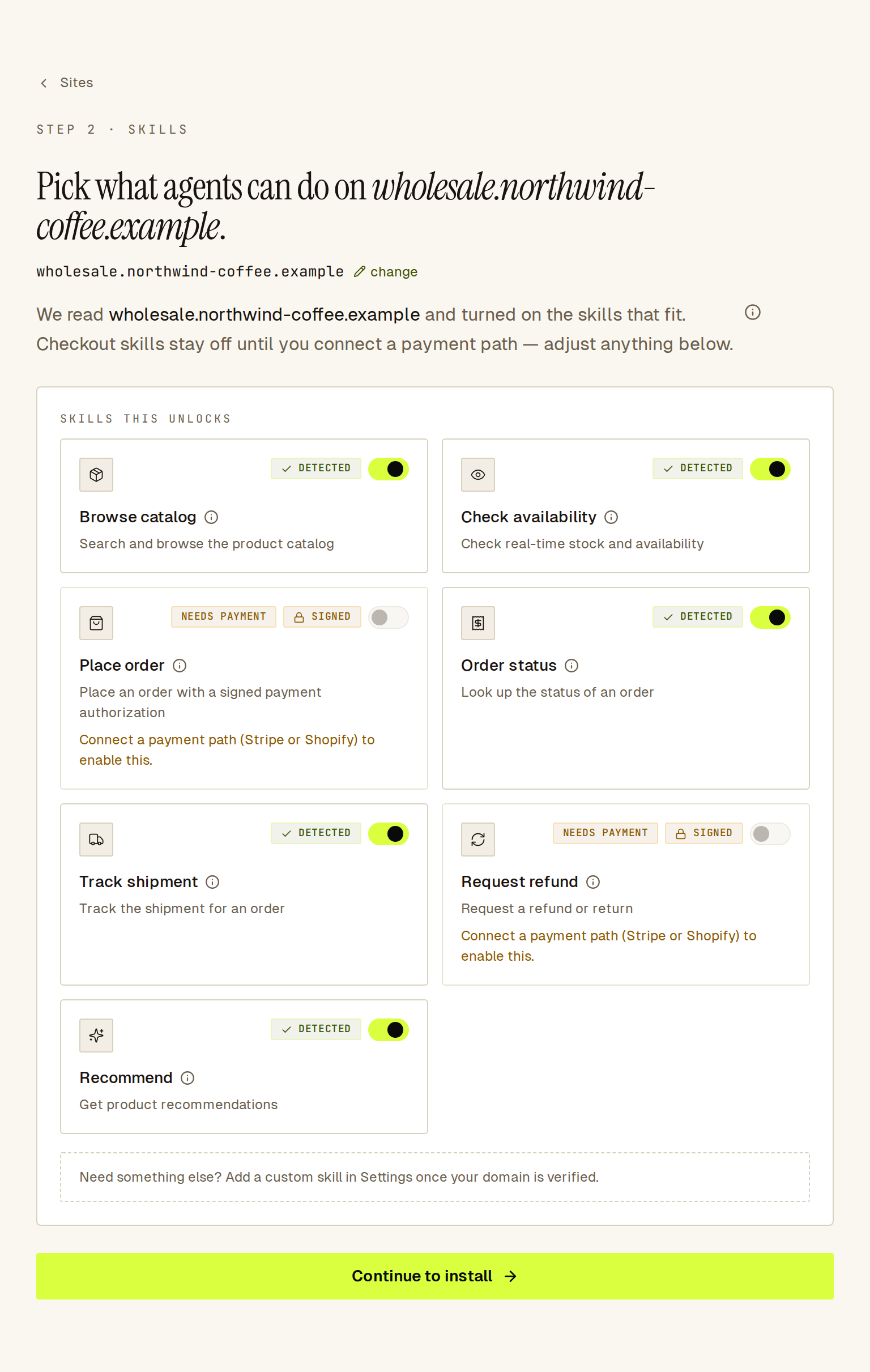 Sill turns on the skills that fit your store; checkout skills wait for a payment connection.
On a site that is not a store, the step leads with Business skills: one row for each pricing, demo, sign-up, booking, contact, status or trust page Sill found on your homepage, with the link filled in. Each row starts off. Edit the link if needed, then turn the row on to save it. The store skills sit under More skills, collapsed and off. If Sill found no such pages, you can add business skills later in Settings → Skills.
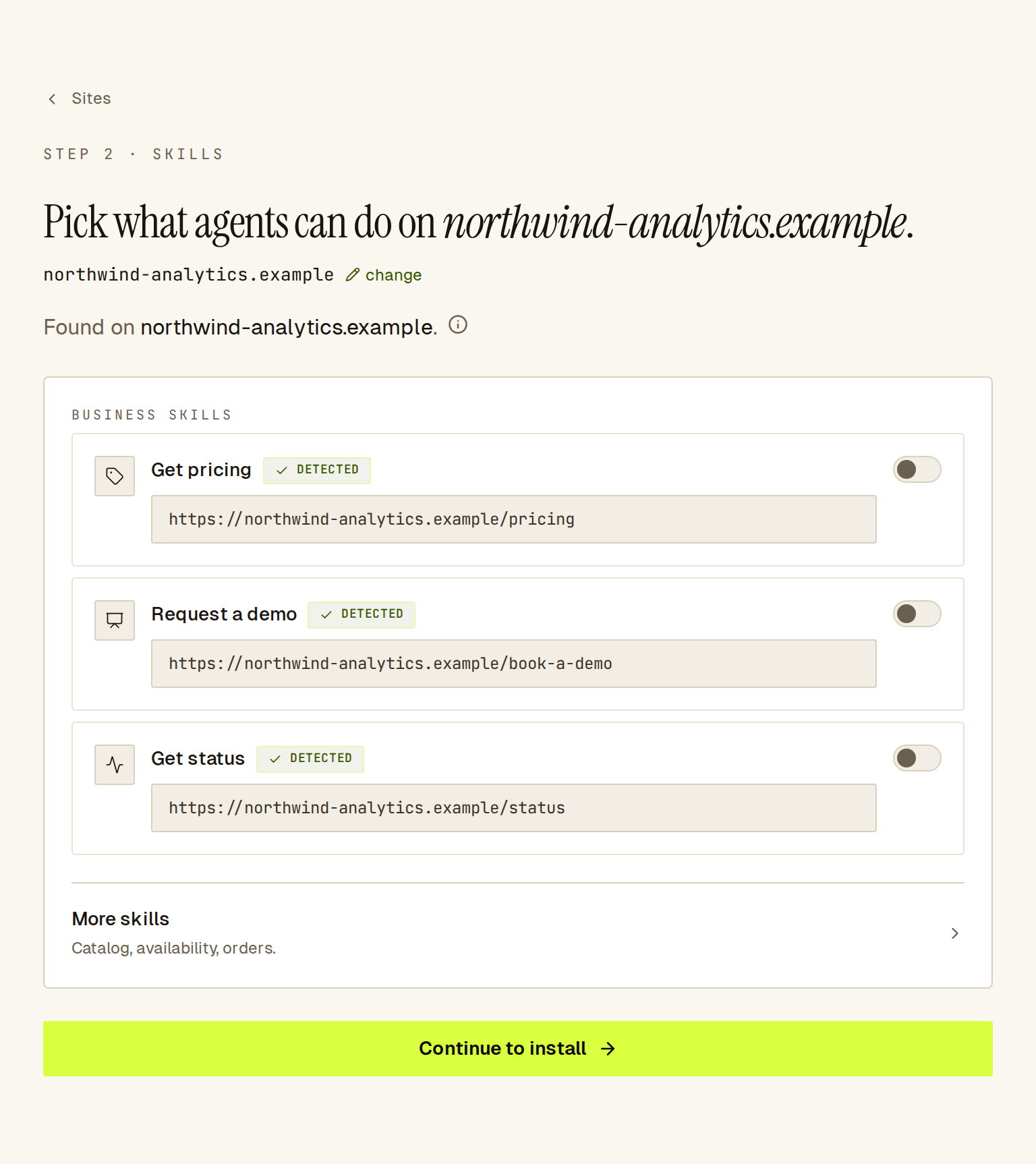 On a site that is not a store, the links Sill found come first; nothing is saved until you turn a row on.
You can change any skill now or later in Settings → Skills. Click Continue to install.
Step 3 — Install and verify
Section titled “Step 3 — Install and verify”Pick an install method, add Sill to your site, then prove you own the domain. Sill pre-selects the tab it recommends for your platform; every tab stays available.
| Tab | What you do | Notes |
|---|---|---|
| Script tag | Paste one <script> before </body>, then add the redirect Sill shows for your host. | Works on any site. Does not see crawlers that skip JavaScript. See Embed script. |
| WordPress | Click Download the plugin (.zip), upload sill-agent-ready.zip in WordPress under Plugins → Add New → Upload Plugin, activate it, then click Verify on the tab. | Serves your agent card and proof file, so verification passes without a paste. See WordPress or WooCommerce. |
| WooCommerce | Install the plugin (or Worker), then connect your store’s REST API keys. | Both steps are needed before agents can read orders. |
| Shopify | Connect your Shopify store. | Connecting proves ownership. See Shopify. |
| Cloudflare Worker | Paste a Cloudflare API token. Sill deploys a Worker on your domain. | For domains that run through Cloudflare. Sees every request, including crawlers. See Cloudflare. |
Each tab shows what it covers under This install covers. See What each install covers for the full comparison.
On the script tag, WordPress and WooCommerce tabs, click Verify. Sill fetches your homepage and looks for your snippet; if it can’t find it, it offers a proof file to publish instead. You cannot finish onboarding without verifying. See Domain verification for every way to prove ownership and how to fix a failed check.
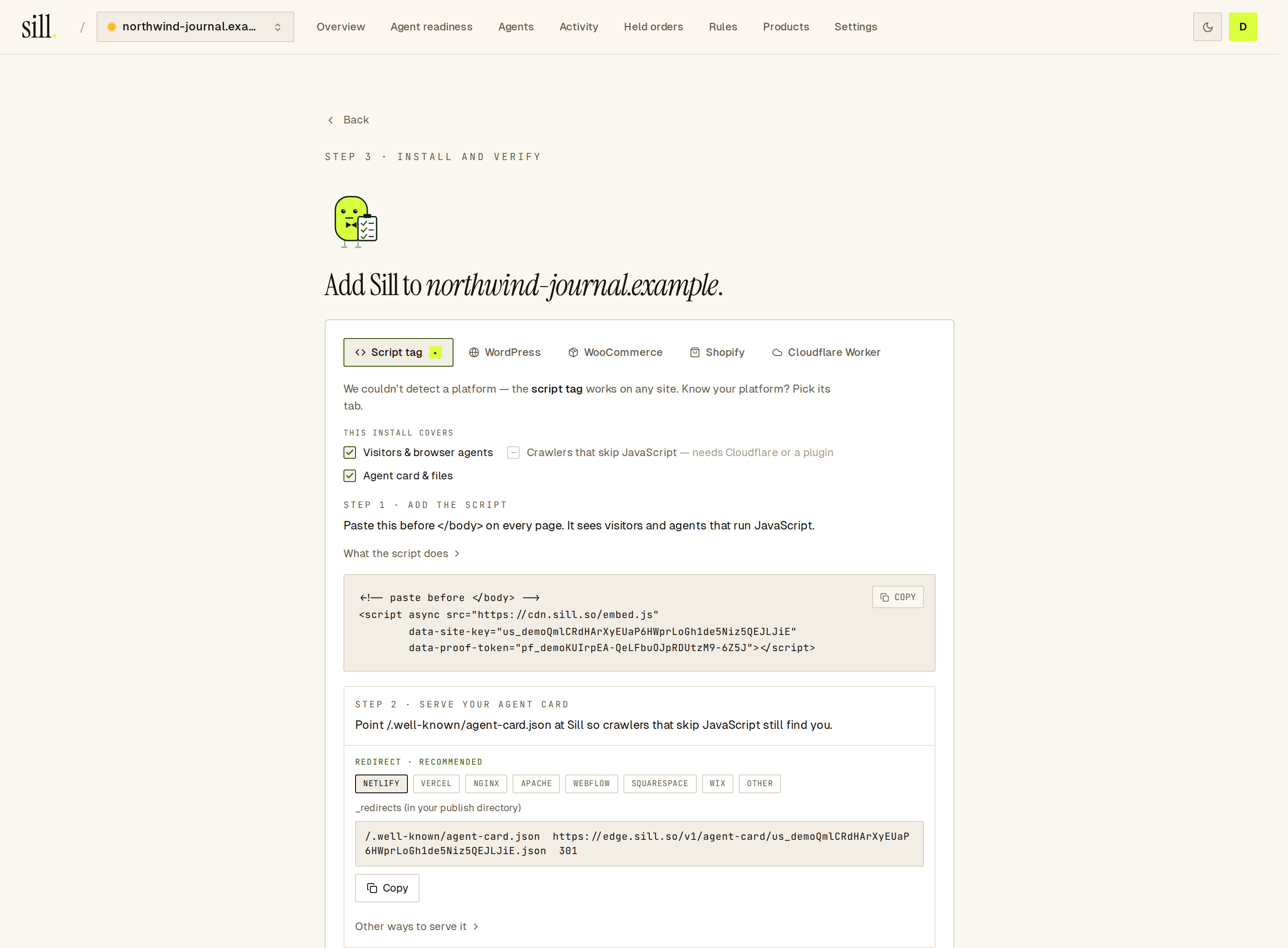 The script tag tab: paste the snippet, add the redirect, then click Verify.
Two options sit below the install work:
- Invite your developer — enter their email. They get admin access to your workspace and an email that links to this step. The snippet and keys are not sent by email; they copy them from the dashboard.
- Finish later — leave onboarding and explore the dashboard. The site stays unverified, and the setup guide on the Sites overview brings you back.
Step 4 — Complete
Section titled “Step 4 — Complete”When the site is verified you see You’re live. If you reach this step before verifying, Sill shows One step left — verify {domain}. and sends you back to step 3.
Below it, What Sill sees on {domain} checks each install layer and suggests one next step, such as Show the redirect for Netlify when your domain doesn’t serve the agent card. Click RE-CHECK after you make a change.
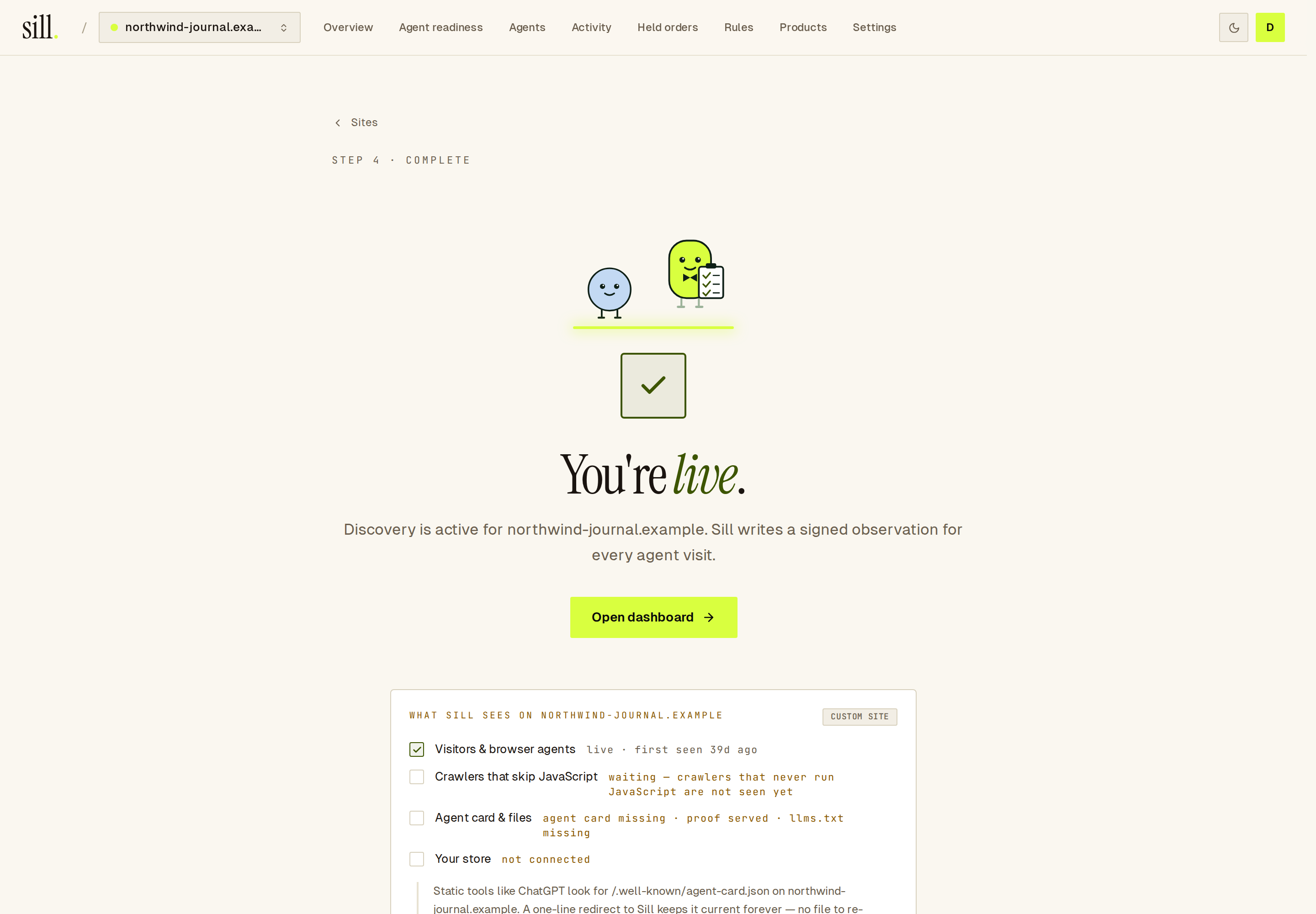 The coverage check names the next gap to close.
What each site status means
Section titled “What each site status means”Each card on the Sites overview shows a label:
| Label | What it means | What to do |
|---|---|---|
| NOT YET VERIFIED | The site is added but ownership is not verified. Sill records nothing and publishes nothing. | Click Continue setup and verify. |
| AWAITING TRAFFIC | Verified, but no visit has arrived yet. | Check the install with View setup details, or wait for the first agent. |
| AWAITING FIRST AGENT VISIT | A Shopify store where Sill installed the script for you and is waiting for the first agent. | Nothing; recording starts on the first visit. |
| DISCOVERY · LIVE | Verified and recording. | — |
If a live site sends nothing for more than 24 hours, its card shows NO RECENT BEACONS. The usual causes are a removed snippet or a rotated site key that was not updated on the site.
An amber UNREGISTERED ORIGINS band means the script was seen on a host that is not on the site’s allow-list. Review it in Settings → Origins.
The setup guide
Section titled “The setup guide”The setup guide on the Sites overview tracks your most advanced site and shows what is left:
- Install and verify
- Set your rules — publish your own rules.
- Connect your store — Shopify or WooCommerce.
- Activate catalog rules — choose which products agents can find in Products.
- Enable governed checkout — connect Stripe, or use Shopify checkout.
- Get escalation alerts — connect Slack. Email alerts are on by default.
Steps 3 to 5 appear only for stores. Each step is checked from your real setup, and the guide disappears when every step is done. Click Hide to dismiss it.
Rotate the site key
Section titled “Rotate the site key”Open Settings → Install and use Rotate key in the Endpoint card (owners and admins). The old key stops working at once, so replace the snippet everywhere you pasted it; until you do, the site records nothing and its card shows NO RECENT BEACONS after 24 hours. On a connected Shopify store, Sill reinstalls the script with the new key for you.
Remove a site
Section titled “Remove a site”On the site card, open the ⋯ menu and choose Remove site (owner or admin). The site stops recording and leaves your sites list. Its past audit records stay stored on Sill’s servers; they are not erased. To get an export of them after removing the site, contact support. You can add the same domain again later; it starts as a new site with a new audit log.
Common questions
Section titled “Common questions”Do I need to change DNS? No. You prove ownership with the snippet, a proof file, the plugin, the Worker or Shopify. See Domain verification.
Can I add a subdomain as its own site?
Yes. shop.northwind-coffee.example and northwind-coffee.example are separate sites, each with its own site key, agent card and audit log.
Is the site key a secret? No. It appears in your page source, like a Stripe publishable key.
What changes for Transactional? Onboarding is the same. For agent checkout you also connect a store or payment platform; see the Transactional overview. The Stripe rail is in early access; Shopify checkout runs in test mode.