Agents
The Agents view shows who is visiting your site: AI assistants, search crawlers, tools and people. For each one you see its traffic, what it did, whether your rules approved it, the revenue it brought in, and how far you can trust the name it gave.
Open it from the main nav → Agents.
On sites where trust labels are turned on, each agent also carries a Verified, Unverified or Likely impersonator label with the evidence behind it; see Trust labels and disputes.
The figures on this page are summaries refreshed every 15 minutes. They are not signed records; for the signed record of every decision, use Audit log and export.
Choose who and when
Section titled “Choose who and when”Two sets of controls narrow the view:
- Who to show — AI agents (assistants and answer engines such as ChatGPT, Claude, Perplexity and Gemini), Crawlers & tools (search crawlers, SEO tools, link previews, monitors and scripts), Humans (plain browsers) or All.
- Time range — Today, 7 days, 30 days (the default) or 90 days.
People are counted only on sites running the Sill script. A browser-mode agent that does not identify itself is counted as a person. Crawlers that fetch pages without running JavaScript show up as traffic but never as browser sessions.
The view has four tabs: Overview, Agents, Demand and Probes.
Overview: what changed this period
Section titled “Overview: what changed this period”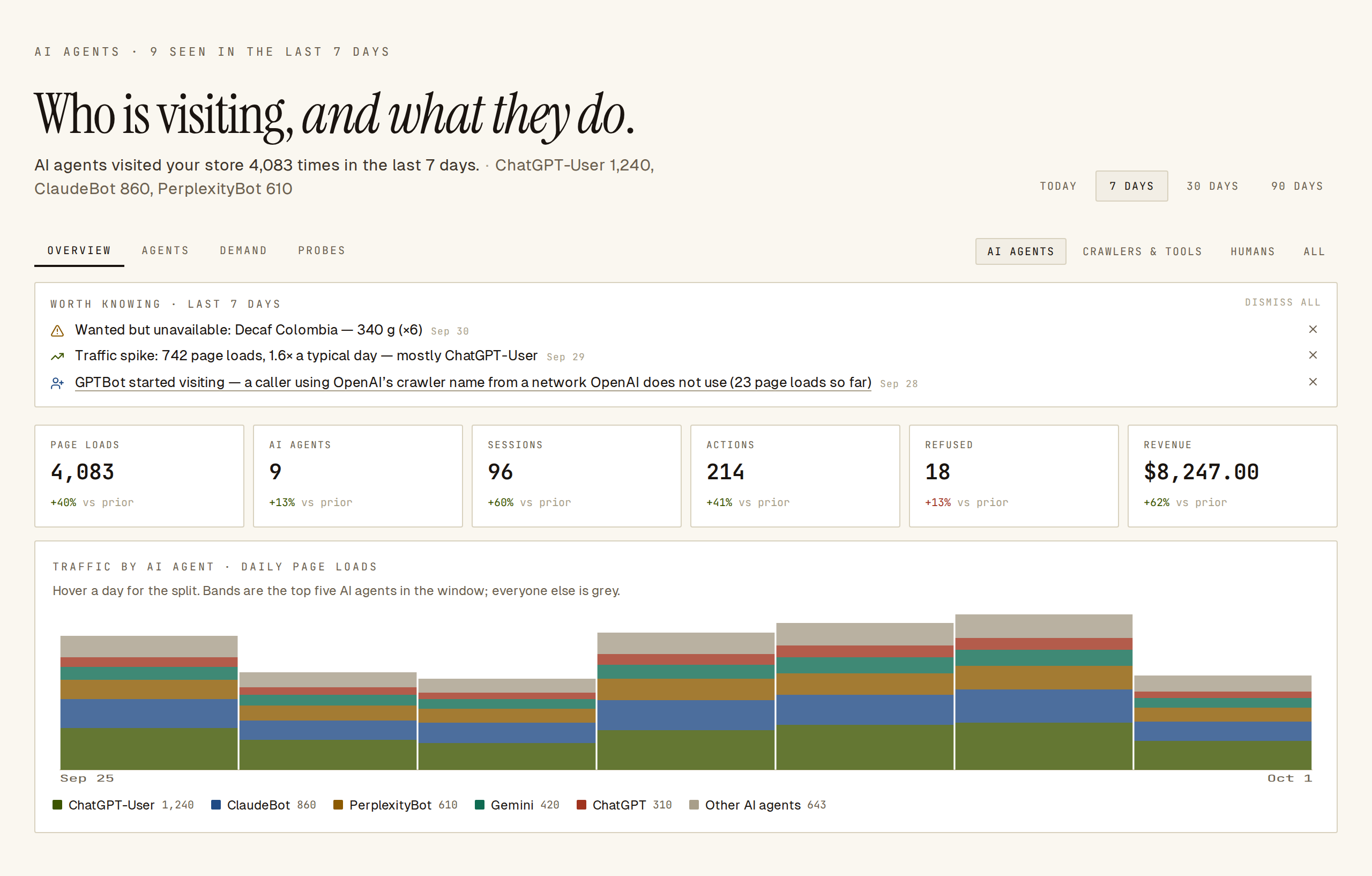 The Overview tab leads with what is worth knowing, the change tiles and daily traffic by agent.
From top to bottom (panel titles follow the filter; these are the titles with AI agents selected):
- Worth knowing — short lines about the last 7 days: a new agent started visiting, a traffic spike, refusals went up, or a product agents wanted was unavailable. Click a name to open that agent; Owners and admins can dismiss a line with ×.
- Change tiles — Page loads, the number of agents, Sessions, Actions, Refused and Revenue, each with the change versus the previous period of the same length. new means there was nothing the period before. Hover a tile for the dates it compares against.
- Traffic by AI agent · daily page loads — daily bars for the five busiest agents, with everyone else in grey. Click a name under the chart to open that agent.
- Which AI agents · share of page loads — on All it is titled Who they are · share of page loads and split by kind of visitor (AI agent, search crawler, SEO tool, link preview and so on), because much of what calls itself an agent is not an AI assistant. On any other filter, split by agent.
- Funnel · how far AI agents get — Sessions, Viewed a product, Searched, Reached cart, Reached checkout, then Requested an action and Approved. Only browser sessions count, so crawlers that skip JavaScript do not appear here.
- Identity · can you trust who they say they are — the share of page loads in the window by how well the caller identified itself: Known agent, Unregistered, No identity string, Likely impersonation and, on the all-callers view, Person. It counts every agent in the window, not only the busiest, so impersonation traffic shows up here even when that agent is not in the funnel. Hover a row for what it means, then open the Agents tab and each agent’s page for the detail.
- When AI agents come · weekday × hour (UTC) — a heatmap of page loads by day and hour.
- Funnel by AI agent · top five — the funnel steps for each of the five busiest agents. Click a row to open the agent.
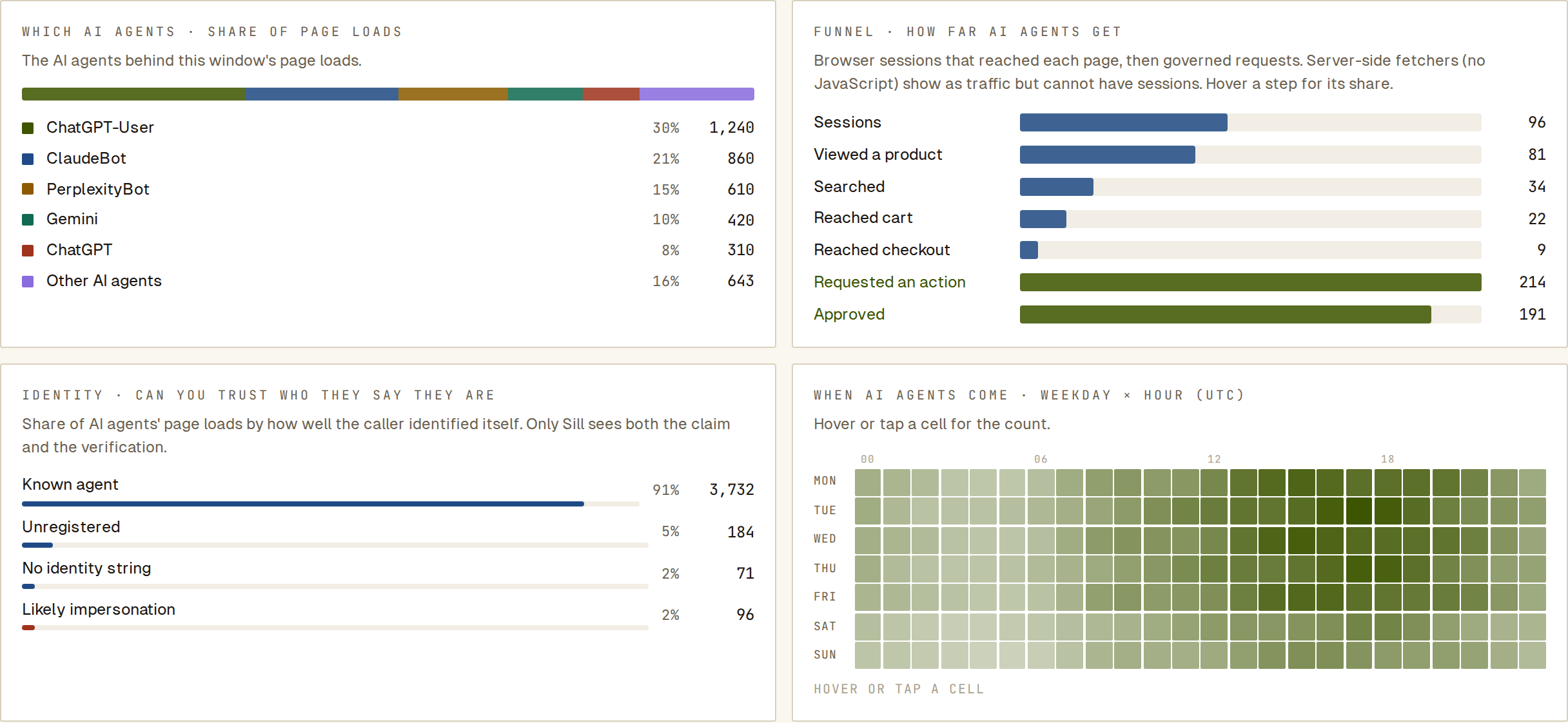 Identity counts every AI agent page load in the window, so 96 likely impersonation loads show up even off the funnel.
Agents: one row per agent
Section titled “Agents: one row per agent”The Agents tab starts with totals for the period (Agents, Traffic, Sessions, Actions, Approval) and then lists one row per agent with Agent, Traffic, Sessions, Actions, Approved, Revenue, Trend and Last seen. Click a column header to sort. Use Search agents to filter by name, agent id or kind.
Under each name are two pills:
- Kind — for example AI agent, Search crawler, SEO tool, Link preview, Uptime monitor or Script / HTTP tool.
- Verdict — Looks safe, Worth watching or Consider blocking. Hover it for the reason.
Click a row to open that agent’s page.
One agent’s page
Section titled “One agent’s page”The header shows the agent’s kind, its identity badge, its name, its registered id (or unregistered), how many versions of its name are grouped into this row, and the first and last day it was seen. View signed activity opens the Audit log filtered to this agent.
Below the header:
- Six tiles: Visits, Page loads, Sessions, Actions (with the share approved), Reached checkout (with how many reached the cart) and Revenue (with any amount refunded).
- Who this is — one sentence on how Sill knows who this is, and a recommendation.
- Daily traffic — page loads per day; the solid part of each bar is requests to act.
- Top pages — the 10 pages this agent loaded most, with Show all when there are more.
- Probe paths — only when the agent asked for files real agents never request, such as
/.envor/wp-login.php. - Pages by kind, searches, skills called, decisions and refusal reasons, how it reached you (which Sill install saw it, and the country), and the products it touched.
Identity badges
Section titled “Identity badges”| Badge | Meaning |
|---|---|
| Verified · signature | Its requests carried a Web Bot Auth signature that matched the operator’s published key. |
| Cloudflare-verified | Your Cloudflare install reported that Cloudflare recognised this operator’s network. |
| Unverified | It uses a known name but sent nothing Sill can check. |
| Likely impersonator | It uses a known bot’s name but asked for secret or admin files, sent a signature that failed to verify, or misspelled the bot’s name. |
See Identifying agents for how Sill recognises agents.
Deal with a likely impersonator
Section titled “Deal with a likely impersonator”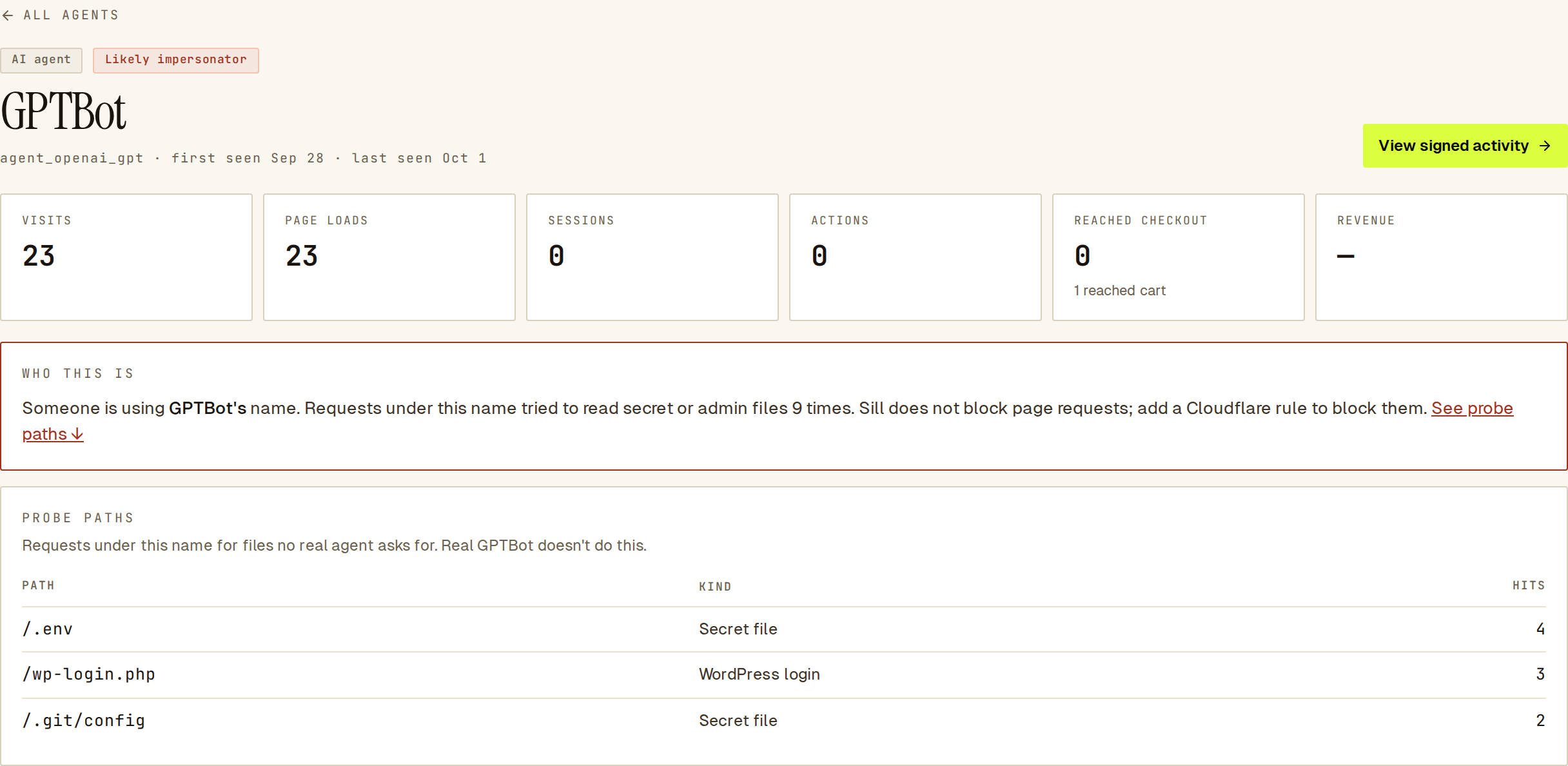 A likely impersonator: the coral Who this is panel and the probe paths it requested.
For a Likely impersonator, the Who this is panel turns coral and says how many times requests under that name tried to read secret or admin files. Sill records these page requests but does not block them. To block them, add a rule in your firewall, for example a Cloudflare WAF rule matching the user-agent and the probe paths. To stop an agent from taking actions such as placing orders, use Rules.
Demand: what agents wanted
Section titled “Demand: what agents wanted”Demand shows what agents came for and what they could not get. A Refusals by day strip at the top shows daily refusals; hover a day for the main reasons.
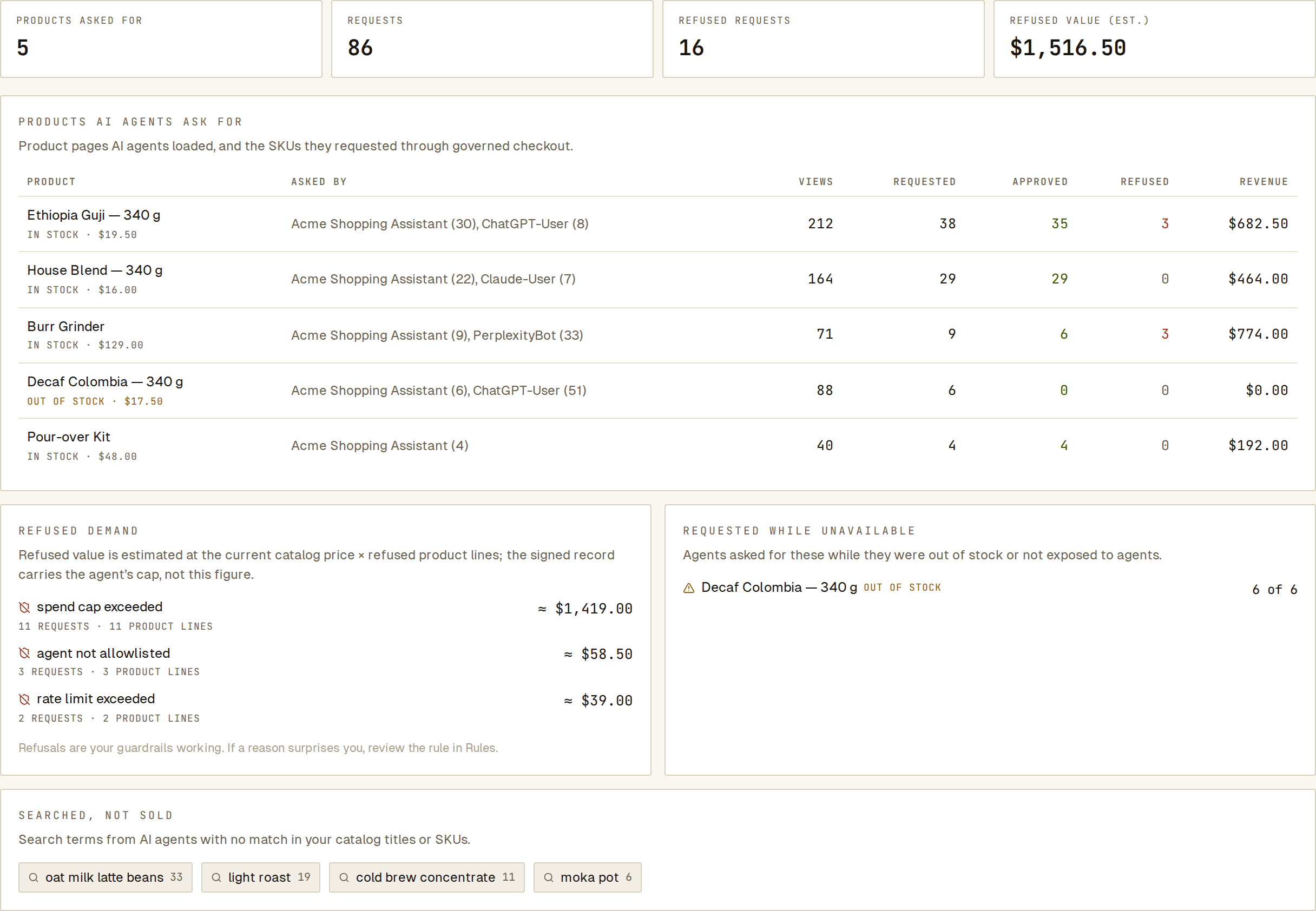 Demand shows which products agents asked for, why requests were refused and what they searched for that you do not sell.
On a site with a synced catalog:
- What AI agents read — the pages agents loaded most, who loaded them, and a split by page type.
- Products AI agents ask for — each product with Asked by, Views, Requested, Approved, Refused and Revenue.
- Refused demand — refused requests grouped by reason, with an estimated value at your current catalog price. The estimate is not a settled amount.
- Requested while unavailable — products agents asked for while they were out of stock or not offered to agents.
- Searched, not sold — search terms with no match in your catalog titles or SKUs.
On a site without a catalog, Demand shows the pages agents read and What AI agents search for; sync a catalog to see products and refusals.
Probes: requests for files no agent needs
Section titled “Probes: requests for files no agent needs”Probes lists every request for secret files, admin logins and server internals in the period, across all agents. Each row shows the path, its Kind (Secret file, WordPress login, PHP file, Server internals, Path escape, GraphQL or Probe), the hits and the Name used. Switch Group by between Path and Name used.
Real AI agents and search crawlers do not request these paths. Sill records them; block them with a firewall rule such as a Cloudflare WAF rule.
See also
Section titled “See also”- Overview — the site’s headline numbers and visitor mix.
- Agent readiness — fix what agents cannot find or read.
- Identifying agents — how Sill tells agents apart.
- Rules — rules that approve, refuse or hold agent actions.
- Audit log and export — the signed record of every decision.