Connect payments
Agent orders are charged on your own payment account. This page covers connecting Stripe or WooCommerce, reading the status Sill shows for each, choosing the rail that settles agent orders, and disconnecting. Everything here is under Settings → Integrations for each site and is available to Owners and Admins.
Transactional features are in early access. Shopify settlement runs in test mode only: agent orders on a Shopify-connected site run against Shopify’s test endpoints.
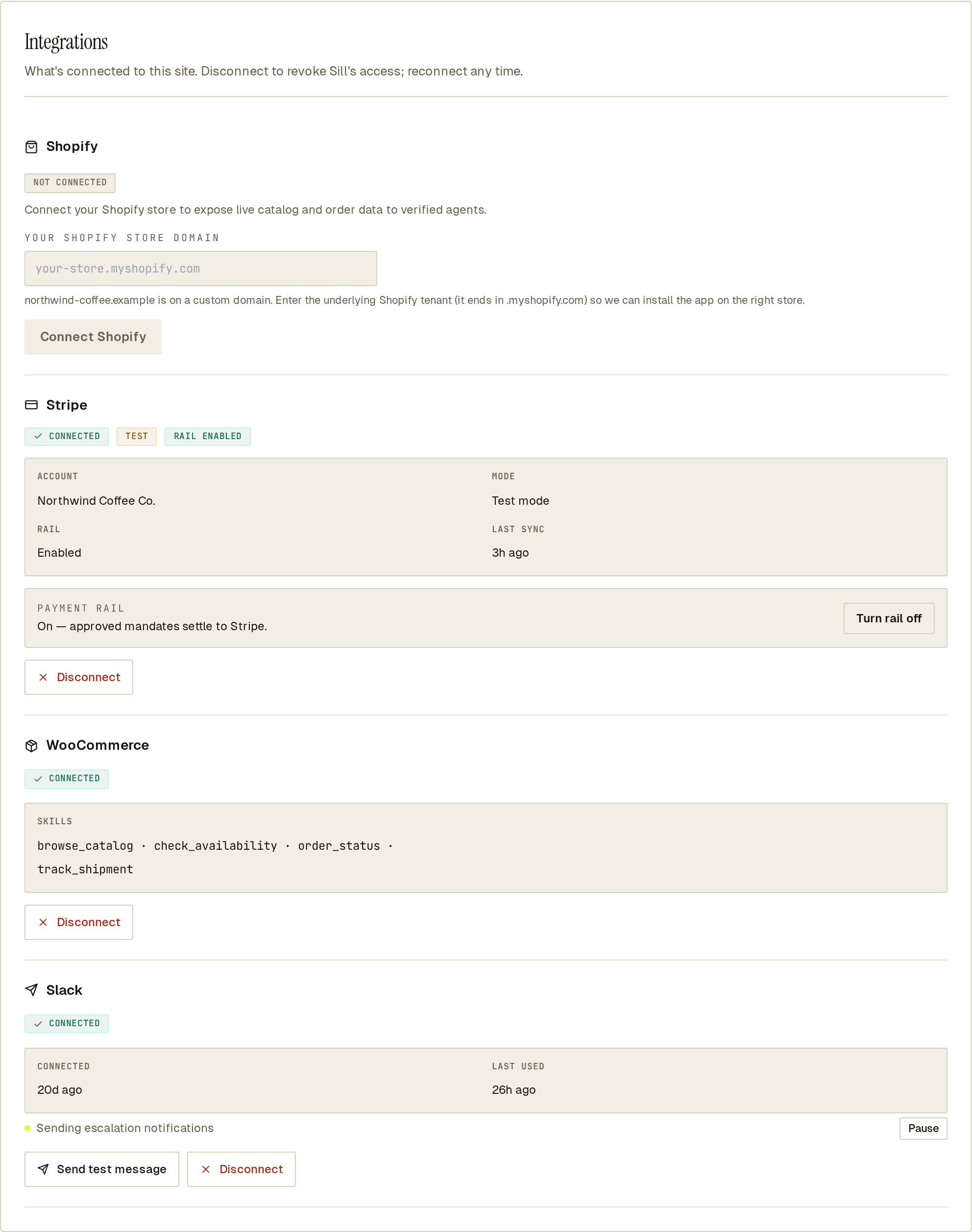 One site’s connections: Stripe in test mode, WooCommerce and Slack connected; Shopify not connected.
Connect Stripe
Section titled “Connect Stripe”Stripe is the rail that charges agent orders and runs refunds.
- Open Settings → Integrations for the site.
- On the Stripe card (NOT CONNECTED), click Connect Stripe. Sill sends you to Stripe to authorise the connection.
- Pick the Stripe account and approve. Stripe returns you to the dashboard and the card shows CONNECTED.
If your access changes while you are on Stripe’s screen (your role is no longer owner or admin, the account is suspended or closed, or the site is deleted), the connection is not saved and Sill shows Could not finish connecting Stripe: Your access changed while this connection was in progress, so it was not saved. Ask an owner or admin to connect again.
Connecting also enables the rail for the site, so approved orders are charged from then on. The card shows:
- CONNECTED, a TEST or LIVE badge, and RAIL ENABLED or RAIL DISABLED.
- Account — the Stripe account name.
- Mode — Test mode or Live mode, taken from the Stripe account you connected.
- Rail — Enabled or Disabled.
- Last sync — when Sill last refreshed the connection.
Turn the Stripe rail on or off
Section titled “Turn the Stripe rail on or off”Under PAYMENT RAIL on the connected Stripe card, click Turn rail off to stop charging agent orders through Stripe without disconnecting, and Turn rail on to resume. The line beside the button says which state the site is in:
- On — approved mandates settle to Stripe.
- Off — Sill signs the audit record but does not charge the card.
While the rail is off, approved orders are recorded and signed but not charged. Only Owners and Admins can change the rail; Reviewers and Viewers see Owner or admin can change this. Turning the rail on needs a verified site and an active Stripe connection.
The TEST / LIVE badge is not a switch. To go live you connect a live Stripe account; live charges are enabled for your account during early-access onboarding. See Payments.
Connect WooCommerce
Section titled “Connect WooCommerce”WooCommerce cannot charge a card from the server, so on a WooCommerce site agent orders are charged on your connected Stripe account. Sill then writes the order, and any later refund, into WooCommerce so it sits with your other orders. Connect Stripe as well if you want agents to buy. See Payments.
- In WooCommerce, go to Settings → Advanced → REST API and create a key with Read/Write permissions. Read-only keys are enough for the read skills (catalog, availability, order status), but agent orders and refunds will not be written to your store.
- In Sill, open Settings → Integrations for the site.
- On the WooCommerce card, fill in the three fields and click Connect WooCommerce:
- Store URL — for example
https://northwind-coffee.example. - Consumer key — the
ck_…value from WooCommerce. - Consumer secret — the
cs_…value from WooCommerce.
- Store URL — for example
The card shows CONNECTED with the store URL and the skills Sill has wired to it.
Choose the settlement rail
Section titled “Choose the settlement rail”Each agent order settles on exactly one rail. With a single payment connection the rail is set automatically; choose one only when both Stripe and Shopify are connected. Both controls are below the connection cards in Settings → Integrations.
Account default
Section titled “Account default”Under SETTLEMENT RAIL, pick:
- Stripe — route
place_orderpayments through your connected Stripe account. - Shopify — route
place_orderpayments through your connected Shopify store (test mode only).
Only connected rails can be selected. Refunds always run on the rail that took the original payment.
Per-site override
Section titled “Per-site override”Under Site settlement rail, a site can use:
- Inherit account default
- Stripe
- Shopify (test mode only)
Use the override when one account runs, for example, a Shopify store and a WooCommerce store with Stripe side by side.
UCP checkout needs Stripe
Section titled “UCP checkout needs Stripe”UCP checkout lets shopping platforms check out on your store and pays through Google Pay into Stripe, so the site’s settlement rail must be Stripe. The UCP checkout row under Settings → Install lists anything else that is missing.
Disconnect
Section titled “Disconnect”Each card has a Disconnect button (Owners and Admins). After you confirm:
- Stripe — Sill deletes its stored Stripe credential and disables the rail. Approved orders that have not been charged yet will fail. Connect Stripe again to resume; reconnecting enables the rail again. To pause charges without removing the connection, use Turn rail off instead.
- WooCommerce — Sill deletes its stored REST keys and commerce skills stop. Also delete the Sill key under WooCommerce → Settings → Advanced → REST API to remove access fully.
- Shopify — Sill deletes its stored Shopify access and commerce skills stop. To remove the storefront embed, uninstall the Sill app in your Shopify admin.
Discovery (agent visit logging, agent card, catalog, MCP endpoint, llms.txt) keeps running after any disconnect.
See also
Section titled “See also”- Payments — how approved orders are charged.
- Refunds — how refunds run on the same rail.
- UCP checkout — checkout for shopping platforms.
- Escalation alerts — email digests and per-site Slack.
- Protocols — which protocols Sill supports today.