Scan domains and share readiness reports
Reports in the Agency Portal scans a list of websites for agent readiness, the same checks as the public scan on sill.so, and gives each site a report you can share. Use it for prospect lists and for client check-ups.
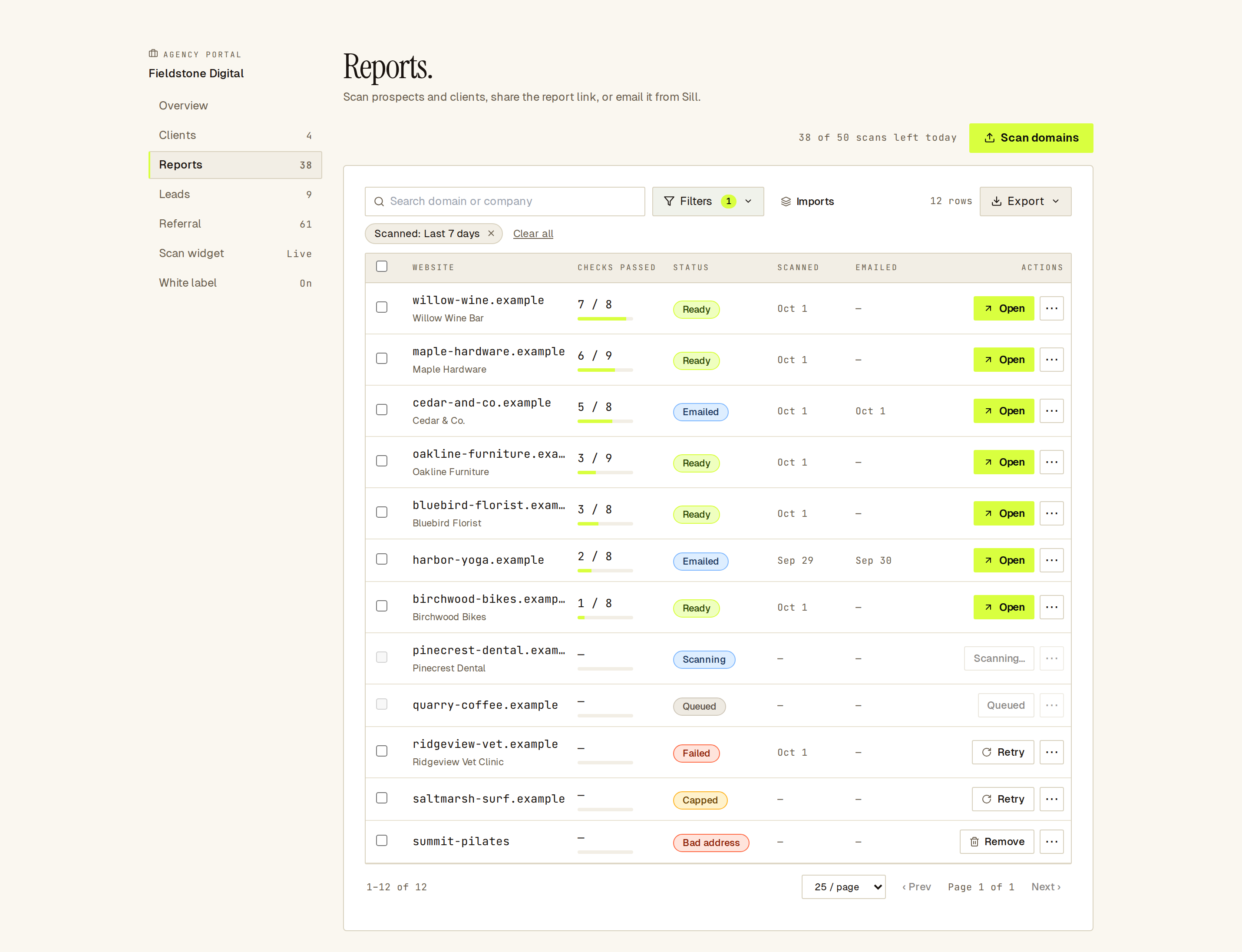 Every scan becomes a row with its checks passed, status and actions.
How do I scan a list of domains?
Section titled “How do I scan a list of domains?”- Open Agency Portal → Reports and click Scan domains.
- Paste websites or email addresses, one per line, and click Next. Or click Upload .csv / .tsv / .txt / .xlsx and pick a file.
- Check the preview, then click Scan {n} domains.
Nothing is scanned until you click Scan. Each batch takes up to 50 domains, and each domain uses one of your daily scans. The line above the table shows what is left, for example 38 of 50 scans left today.
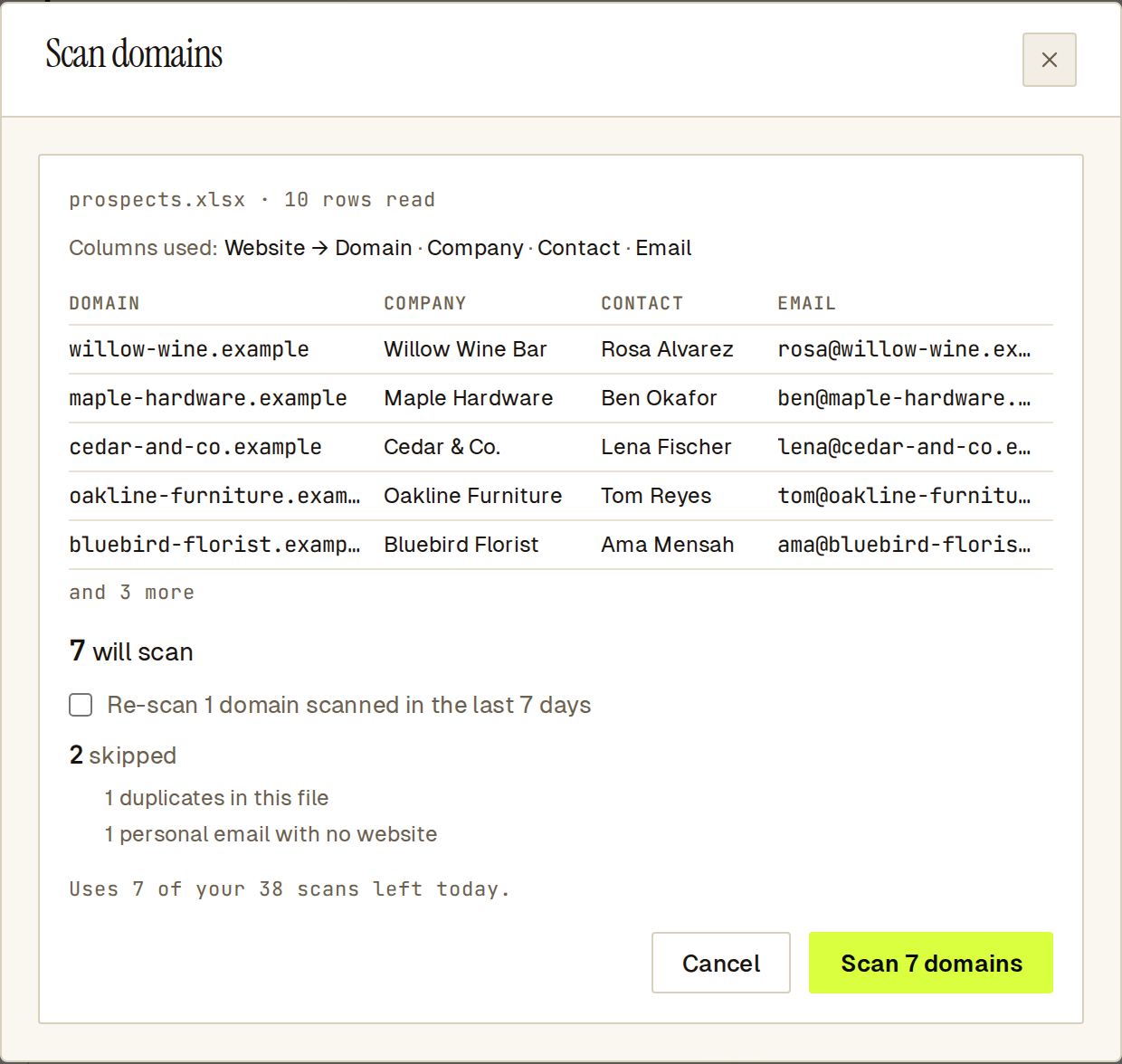 The preview shows which columns Sill used, the first rows, and what will be scanned or skipped.
How does Sill read my list?
Section titled “How does Sill read my list?”Sill turns each entry into a domain:
https://www.example.com/aboutbecomesexample.com.- An email address such as
[email protected]becomesexample.com. - The same domain twice is scanned once.
A spreadsheet with a header row can carry contact details. Sill looks for these column names:
| Column | Names Sill recognises |
|---|---|
| Website | Website, Domain, URL, Site, Homepage |
| Email, Email address, Work email | |
| Company | Company, Company name, Organization, Business |
| Contact | Contact, Contact name, Name, Full name |
When a row has no website, Sill uses the domain of its email address. The company and contact are kept with the report, and Email report fills in the recipient and first name from them. Cells you copy straight from a spreadsheet and paste keep their columns too.
Excel files must be .xlsx and under 2 MB; Sill reads the first sheet. For an older .xls file, save it as .xlsx or CSV first.
Why were some domains skipped?
Section titled “Why were some domains skipped?”The preview lists anything it will skip and why. Skipped entries do not use a scan.
| Reason shown | What it means |
|---|---|
| duplicates in this file | The domain appears more than once in the list. The first row is kept. |
| personal email with no website | An address at a webmail provider such as Gmail or Outlook, with no website in the row. There is no business site to scan. |
| not valid domains | A word, a heading or a mistyped address. |
| empty rows | A blank line or row. |
| over the 50-per-import limit | The list had more than 50 domains. |
If you scanned some of the domains in the last 7 days, the preview says how many and offers Re-scan {n} domains scanned in the last 7 days. Leave it unticked to skip them and keep their existing reports, or tick it to scan them again.
After you click Scan, results appear in the table. If anything else was skipped, the dialog says so; click View results to go to the table.
What do the report statuses mean?
Section titled “What do the report statuses mean?”| Status | Meaning |
|---|---|
| Queued | Waiting its turn. |
| Scanning | The scan is running now. |
| Ready | The report is ready to share. |
| Emailed | You sent this report by email. |
| Failed | Sill could not reach the site. Check the address or click Retry. |
| Capped | You had no scans left that day. Click Retry when your allowance has room. |
| Bad address | Not a valid website address. Click Remove. |
Checks passed shows how many agent-readiness checks the site passes, such as 5 / 8: the same count as the report headline. Shopify and WooCommerce stores get one extra check, so their total is 9.
The table refreshes on its own while scans are running.
How do I find a report?
Section titled “How do I find a report?”- Search domain or company filters by domain or company name as you type.
- Filters narrows by Status, Checks passed (for example Most pass (≥ 75%)), Scanned (last 7, 30 or 90 days, or all time) and Import. The table starts on the last 30 days.
- Imports lists each batch you submitted, with its counts. Pick one to show only that batch.
Active filters appear as chips under the toolbar. Click × on a chip to remove it, or Clear all.
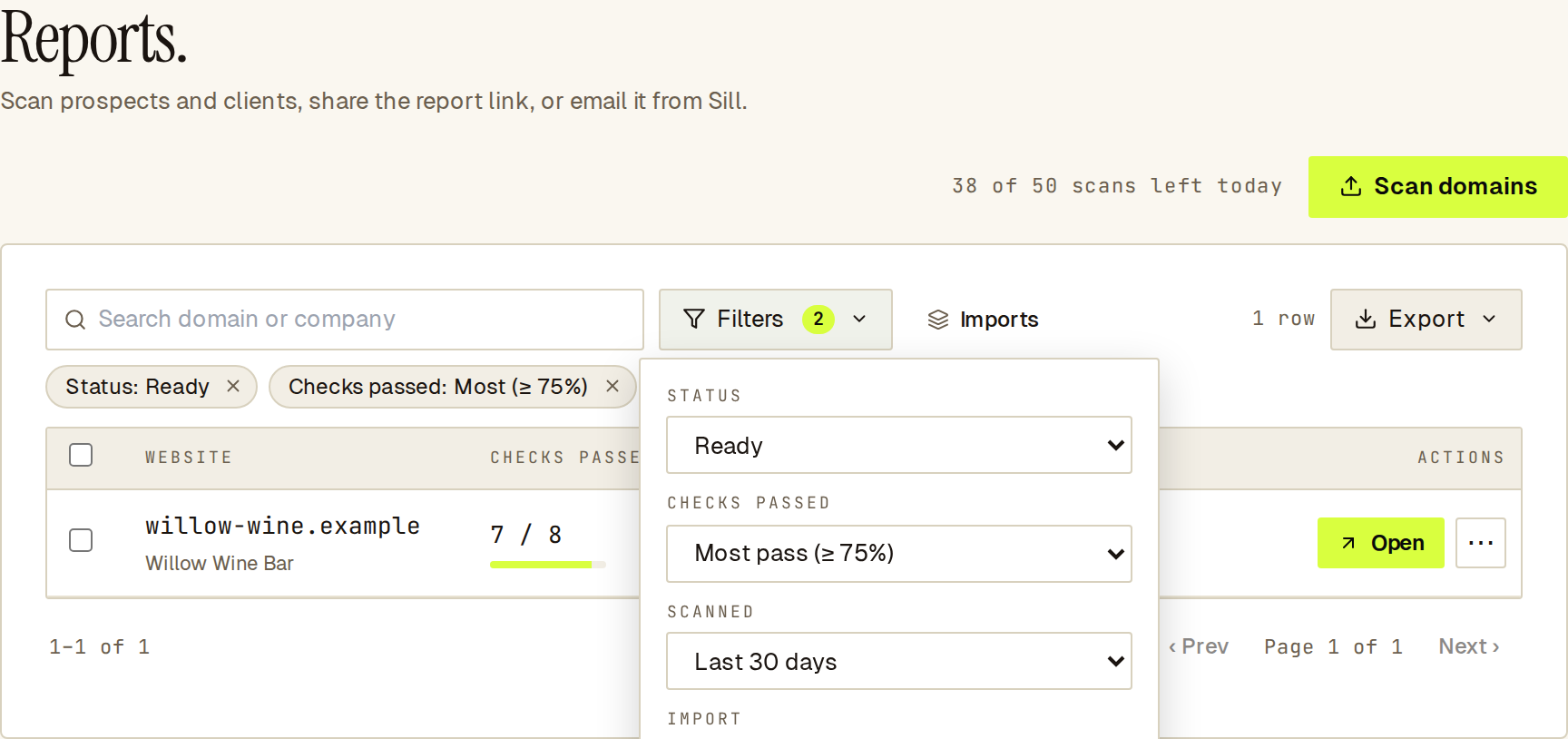 Filter chips show what the table is limited to.
What can I do with a report?
Section titled “What can I do with a report?”Open shows the hosted report in a new tab. The ⋯ menu on each row offers:
- Copy link: copies the report link to share yourself.
- Email report: sends the report from Sill (see below).
- Re-scan: scans the site again. Available on reports older than 24 hours.
- Delete report: removes the row. The shared link stops working.
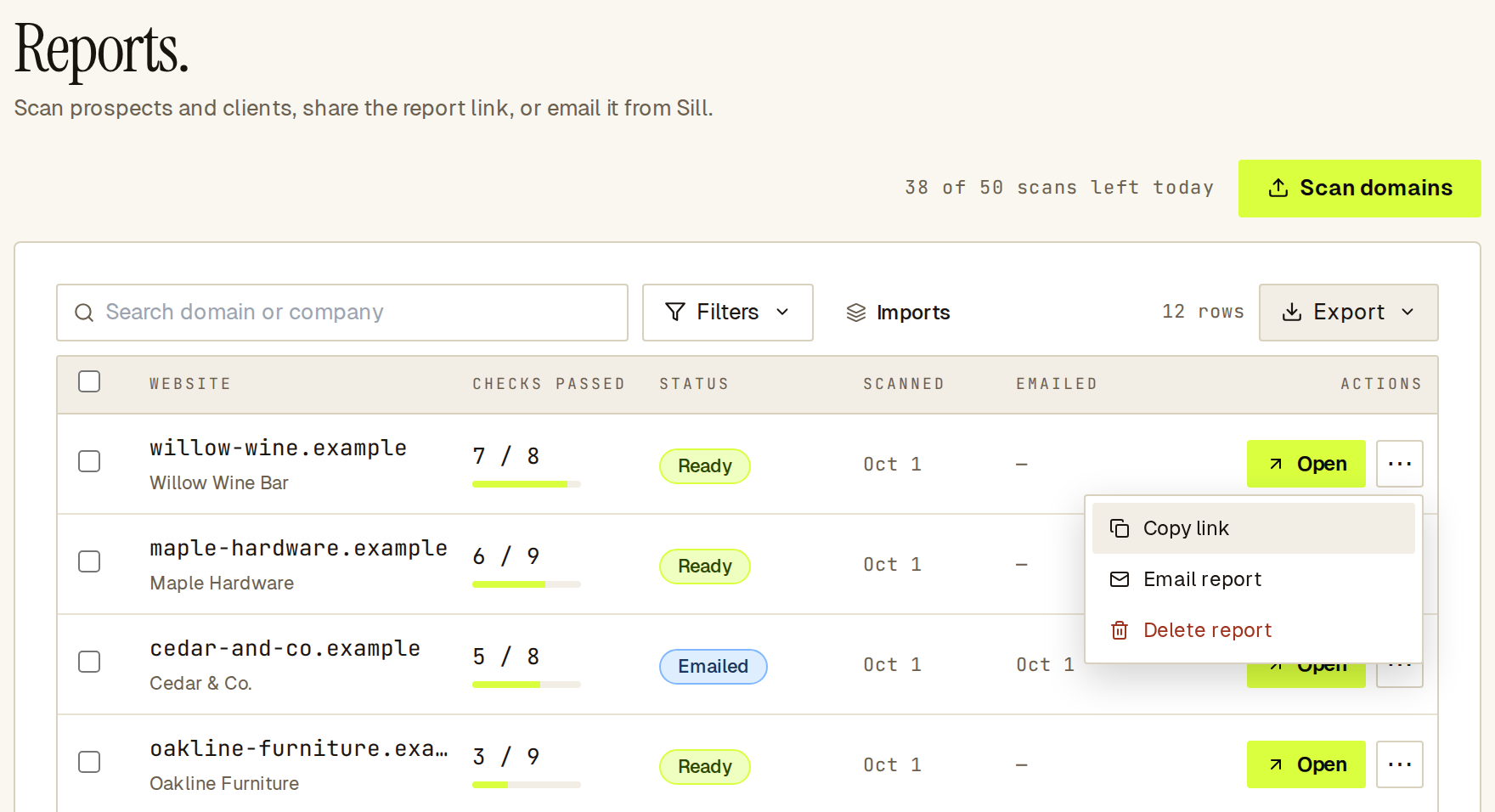 The row menu on a ready report.
Report links you share from here carry your agency’s branding. See White label.
To delete several rows, tick their checkboxes and click Delete selected. Rows still queued or scanning cannot be selected.
How do I email a report?
Section titled “How do I email a report?”- On a Ready row, open ⋯ → Email report.
- Enter the Recipient email.
- Optionally add a First name. The email then opens with “Hi {first name},”.
- Keep or edit the Subject. The default is
{domain}: how ready your site is for AI agents. Click Reset to default to restore it. - Tick the box confirming the recipient agreed to receive readiness reports from your agency.
- Click Send.
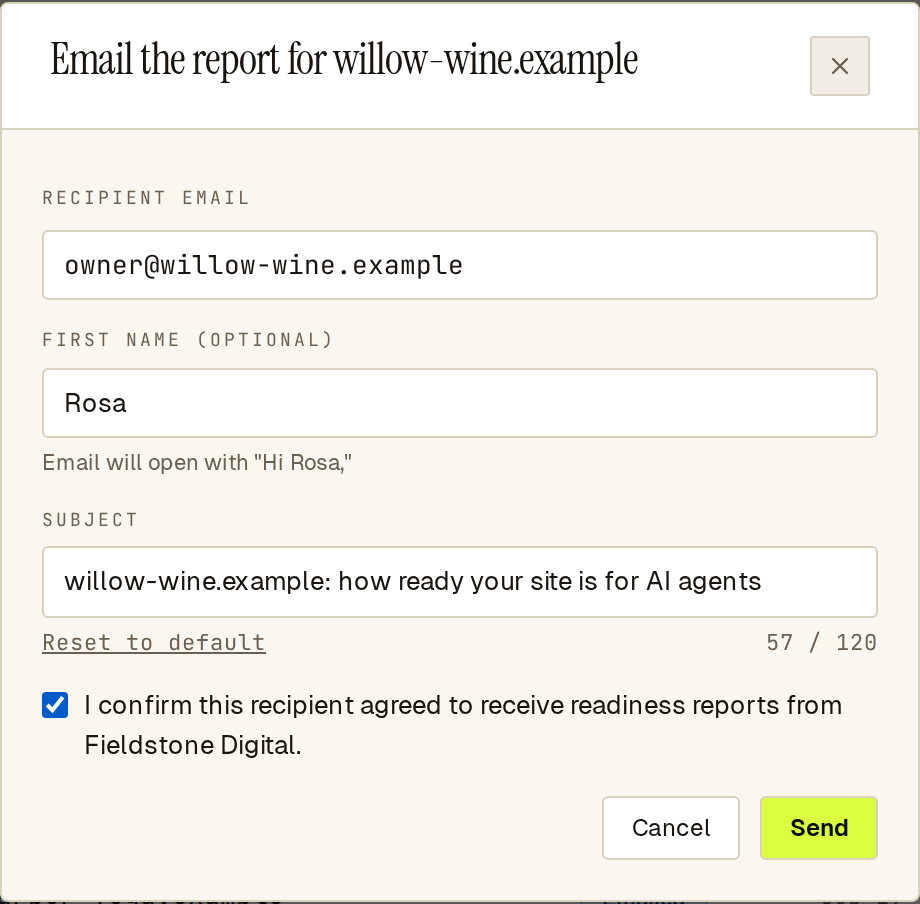 You must confirm consent before Sill sends the report.
Sending can take up to 20 seconds. The row then shows Emailed with the date. Each email counts against the same daily allowance as your scans.
Rules for the fields:
- Subject: up to 120 characters, no links, not all capitals.
- First name: 1 to 40 characters; letters, spaces, hyphens and apostrophes.
Every report email includes an unsubscribe link. Sill does not send to addresses that unsubscribed or bounced; the dialog tells you to use a different address.
How do I export reports to CSV?
Section titled “How do I export reports to CSV?”- Set the search and filters you want.
- Click Export.
- Optionally tick Include contact details to add the contact email and name columns.
- Click Export CSV.
The file contains every row that matches, with these columns: website, company, agent_ready_checks_passed, agent_ready_checks_total, status, platform, scanned_at, emailed_at, report_url and top_findings.
How long does Sill keep report data?
Section titled “How long does Sill keep report data?”Contact details stored with a report (email, name and company) are deleted after 180 days. The domain, scan result and report link stay.
Frequently asked
Section titled “Frequently asked”Does scanning a prospect tell them?
No. Sill reads the site’s public pages and files, as it does for the scan on sill.so. The prospect only hears from you if you send the report.
How many times can I retry a scan? Up to 3 times per site in 24 hours, and up to 20 retries per hour across your agency. Each retry uses one daily scan.
Can I scan a domain again within 7 days? Yes. Tick Re-scan in the import preview, or use Re-scan on a report’s row once it is older than 24 hours.