Escalation alerts
When a rule escalates an agent order, Sill holds it on Held orders and tells your team. There are two channels: a grouped email digest and an optional Slack webhook per site. Both link to the dashboard; approving and rejecting always happen there. A held order that nobody resolves is rejected after 24 hours, so the alert is your cue to act. See Human in the loop for the review flow itself.
Email digest
Section titled “Email digest”Every active Owner, Admin and Reviewer who can access the site gets an email when an order is held there. A Reviewer limited to selected sites only gets emails for those sites. It is on by default; each person can turn it off under Account settings → Notifications → Escalation digest email. Sign-in emails are always sent.
- Subject —
[Sill] Held order on northwind-coffee.example needs review, or[Sill] 3 held orders on northwind-coffee.example need reviewwhen several are waiting. - Body — for each held order: the action and merchant, the number of items, the order total, the rule that fired, when it auto-rejects, and the escalation id. No buyer details and no product names or SKUs.
- Button — Review and resolve, which opens Held orders for that site.
- Timing — Sill checks for new held orders every minute and sends at most one email per site every 10 minutes; orders held in between are grouped into the next email. Each held order is emailed once.
Add Slack to a site
Section titled “Add Slack to a site”Slack notifications are configured per site under Settings → Integrations. Each site has its own webhook — connect only the sites you want to notify.
- In Slack, go to Apps → Incoming Webhooks → Add to Slack and copy the webhook URL. It will look like
https://hooks.slack.com/services/…. - In Sill, open Settings → Integrations on the site.
- On the Slack card (status NOT CONNECTED), paste the URL into WEBHOOK URL and click Connect Slack.
The card flips to CONNECTED. Below the status row Sill shows Sending escalation notifications (or Notifications paused when paused), plus Send test message, Pause, and Disconnect.
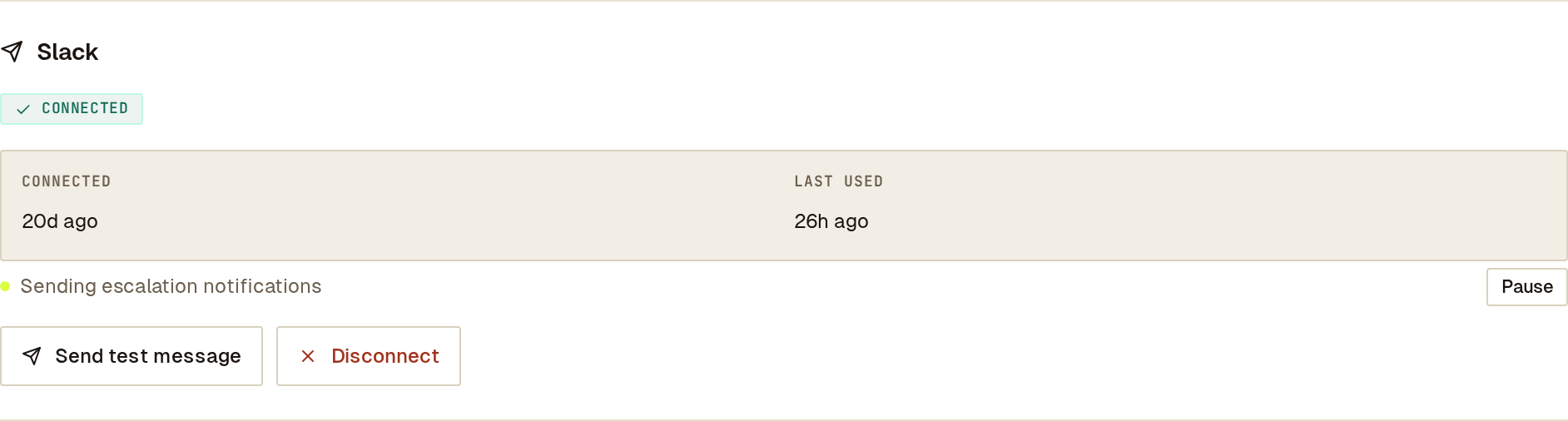 Slack connected to a site, sending held-order alerts, with test and pause controls.
Send a test message
Section titled “Send a test message”Click Send test message. Sill posts a grey test card to the channel. Use it after connecting to confirm the alerts go to the right place.
Pause and resume
Section titled “Pause and resume”Click Pause to stop sending Slack notifications without disconnecting the webhook. The status indicator turns amber and the button becomes Resume. Clicking Resume turns notifications back on; orders held while paused are not posted afterwards. Pausing does not affect the email digest.
Disconnect
Section titled “Disconnect”Click Disconnect and confirm. Sill deletes the stored webhook URL and Slack alerts stop immediately. You can reconnect at any time by pasting a webhook URL.
What a Slack message contains
Section titled “What a Slack message contains”Each message is an amber Slack card with the same fields as the email (action and merchant, items, total, rule, auto-reject time; no buyer details or SKUs) and a Review and resolve button that opens Held orders for that site. Slack messages follow the same timing as the email.
If Slack refuses the message, for example because the webhook was removed in Slack, Sill tries again on the next check. Orders still appear on Held orders and in email. Use Send test message to check the webhook, and disconnect and paste a new URL if it no longer works.
See also
Section titled “See also”- Human in the loop — the review flow in the dashboard.
- Policy engine — how rules decide what to escalate.
- Connect payments — Stripe and WooCommerce.
- Users and roles — who sees the digest.