Agent readiness
Agent readiness is the one page that answers “is my site ready for AI agents?”. It reads your site the way an agent would, scores what it found, points at the single next thing to fix, and lets you fix most of it from the page itself.
Open Agent readiness in the top navigation.
Read the verdict and the score
Section titled “Read the verdict and the score”The header carries three things:
- Verdict headline — one of Ready for AI agents., Almost ready for AI agents., or Not ready for AI agents yet..
- Verdict ring — a dial that fills with the share of counted checks passing. The ring is red when at least one blocking check is failing, amber when only improvements are left, and green when nothing is left.
- Sub-line — “N things to fix” (click it to open the What’s left drawer) and “N AI agent visits this week” (click it to jump to Agents).
Checks that don’t apply to your site, or that Sill couldn’t measure yet, aren’t counted — that is why sites show different totals.
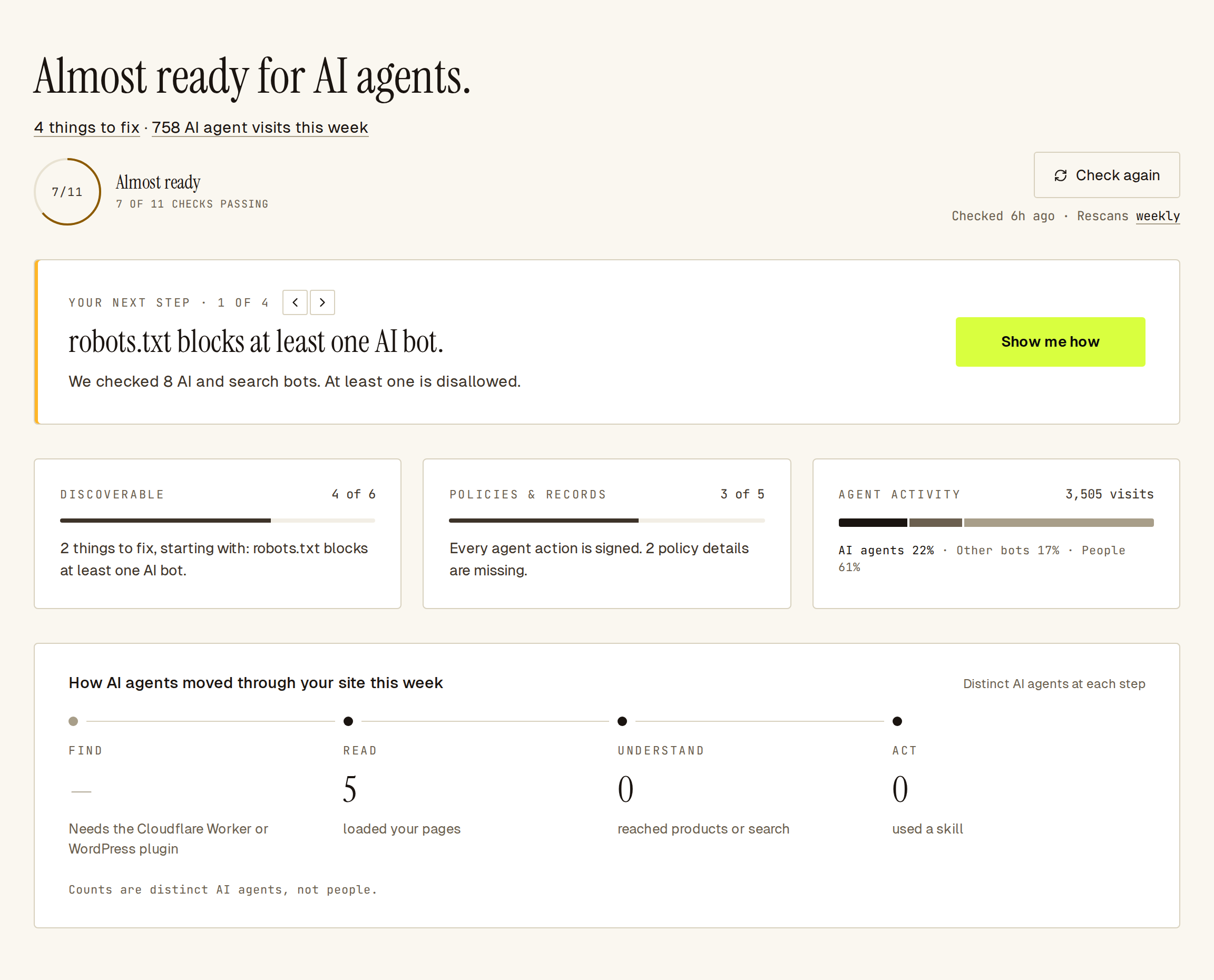 The verdict ring, the next step, the three goals and the journey — all on one page.
Pick your next step
Section titled “Pick your next step”Below the verdict, the Your next step card names one specific fix. The card shows:
- Your next step · 1 of N, with arrows to browse the other steps.
- A short headline (for example “No llms.txt served from your domain.”) and one sentence that says why it matters.
- One Show me how button that opens the fix drawer. Where the fix is an agent-card value Sill read from your site, the button applies it directly (labelled Use followed by the value).
For a missing terms, privacy or returns link, or a missing return window Sill read from your site, the card shows a prefilled field and a Save button instead. When your site and agent card disagree, The card is right hides the flag until the next check.
See the three goals
Section titled “See the three goals”Three cards group every check into the goal it serves:
- Discoverable — can AI agents find and read you? Covers crawler access, robots.txt, sitemap, structured data, Sill install coverage, agent card, MCP server, llms.txt, and the API catalog. It also shows whether your homepage charges AI agents (x402 or Cloudflare pay-per-crawl); that row is informational, never counted and never listed in What’s left.
- Policies & records — what agents need to trust you, and the proof Sill keeps. Covers your linked terms, privacy and returns policies, agent-card fields, guardrails, signed records, and AI content signals in robots.txt.
- Agent activity — this week’s visitor mix: AI agents, other bots and people. People are counted only where the Sill script runs; the card says so when it isn’t installed.
Discoverable and Policies & records each show an N of M passing count and a one-sentence summary that names the first thing to fix. Agent activity shows the week’s visit total. Click a card to scroll to its section.
Rows marked – in the N checks passing list are not counted and have nothing to fix, for example UCP profile on a site that is not a store. The charging row reads Doesn’t charge agents, Charges agents per request (x402) or Charges AI crawlers (Cloudflare pay-per-crawl).
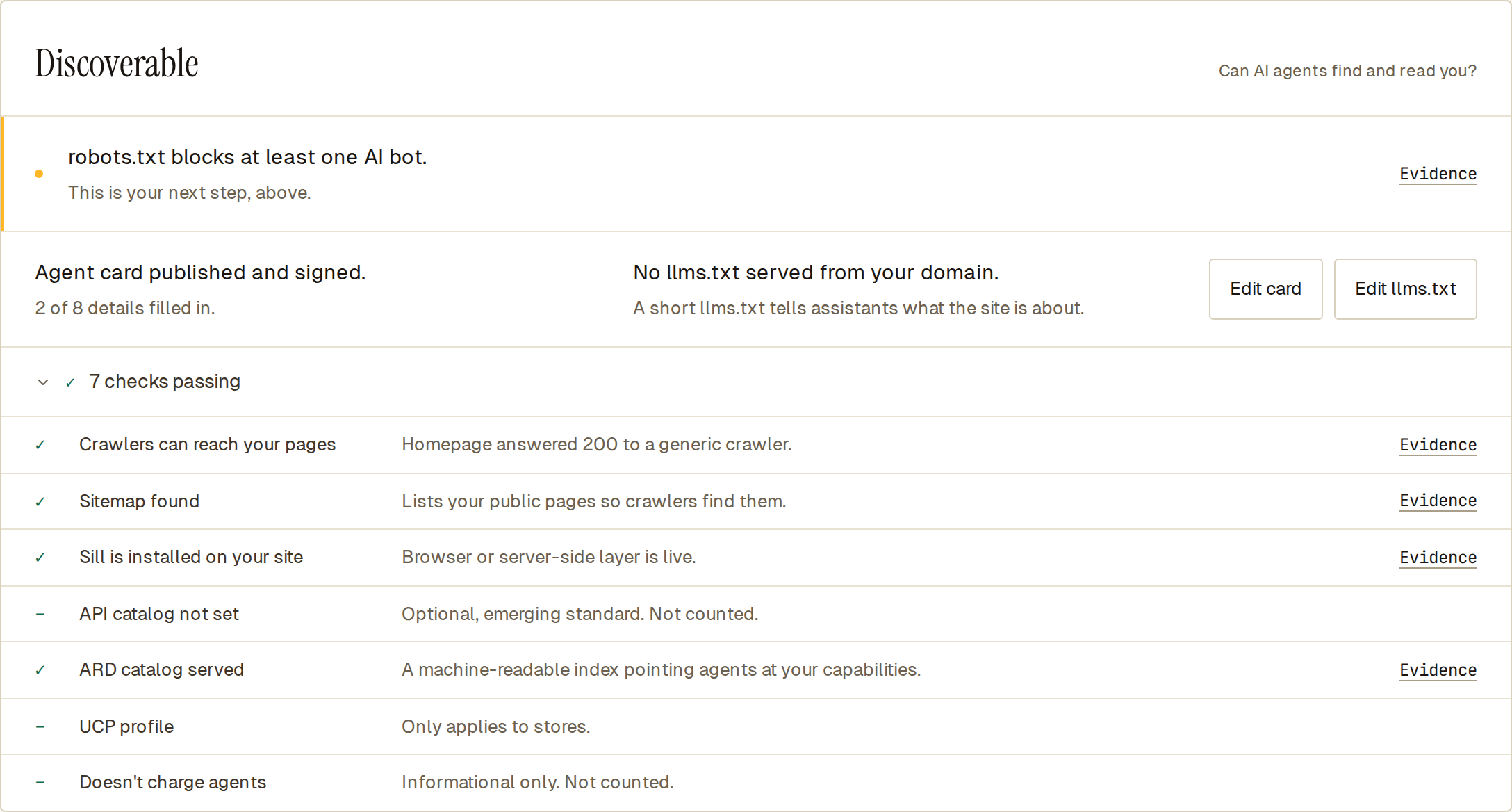 Rows with a dash are informational and do not count toward the score.
Follow the Find → Read → Understand → Act journey
Section titled “Follow the Find → Read → Understand → Act journey”The How AI agents moved through your site this week strip shows four counts — distinct AI agents at each step, not percentages:
| Step | What it counts |
|---|---|
| Find | AI agents that fetched a discovery file (agent card, llms.txt, UCP endpoint, MCP card, API catalog, /agent page). |
| Read | AI agents that loaded one of your pages. |
| Understand | AI agents that reached a product, collection, or search page. |
| Act | Skill requests, with the approved count underneath. |
Only the Cloudflare Worker and the WordPress plugin can count Find, because the script tag cannot see agents fetching files from your server. On a script-only install, Find shows a dash and Needs the Cloudflare Worker or WordPress plugin. When your top fix is a firewall answering crawlers with 403 Forbidden, the Understand step is marked in red.
Click a step to open an in-page drill-down drawer.
Open the fix drawer for any check
Section titled “Open the fix drawer for any check”Every row in Discoverable and Policies & records has a Show me how or Evidence link. For a failing check, the drawer has three parts:
- What’s wrong — what Sill actually found: a status code, the bots that are blocked, the missing field.
- How to fix it — numbered steps for your platform, with snippets filled in with your domain.
- Why it matters — one sentence on what it costs you.
For a passing check, the drawer shows What we checked and What we found: the URLs, response codes and per-bot results Sill saw. Every drawer has a Check again button to rerun the check after you fix something.
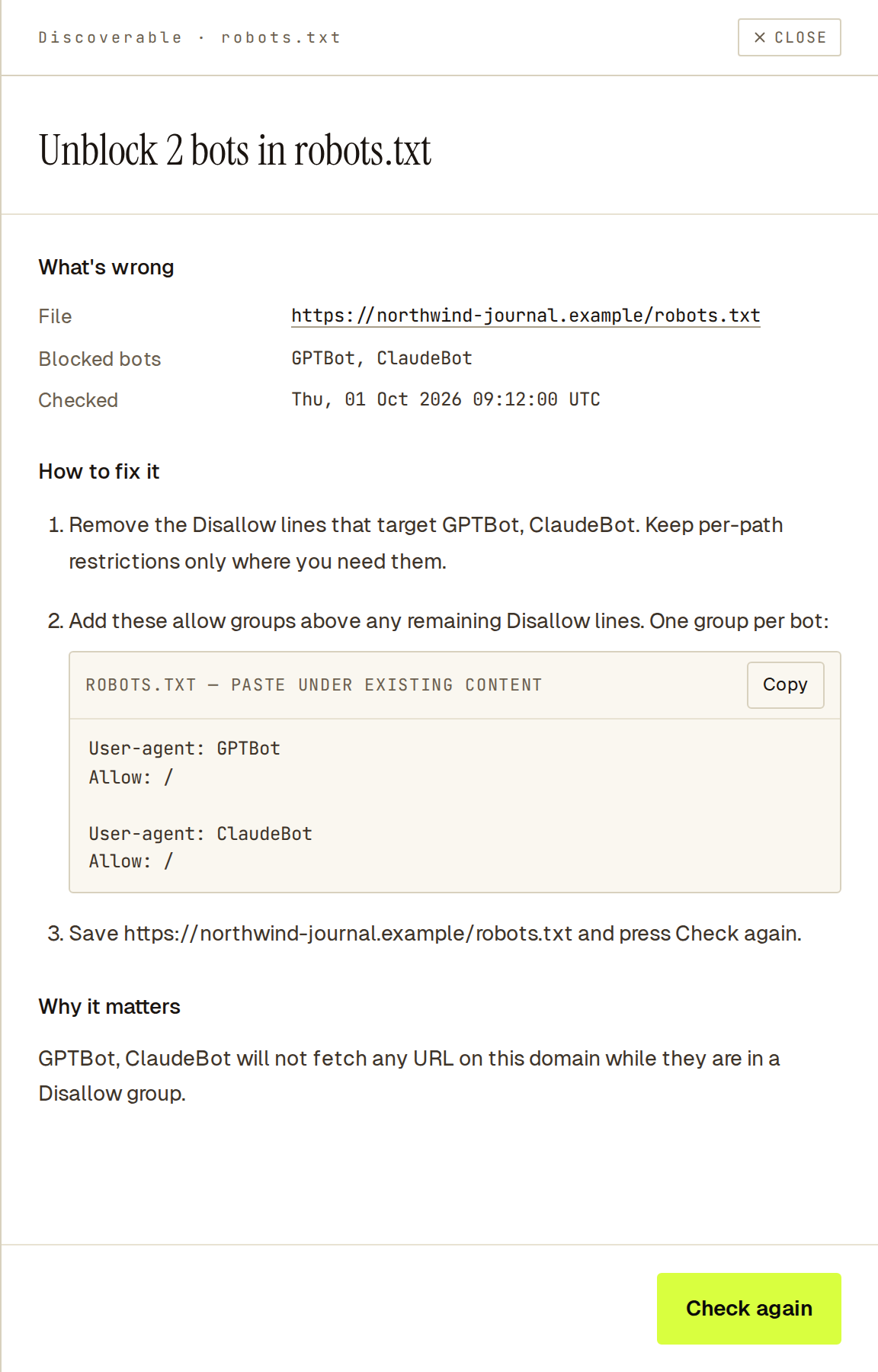 The fix drawer for a blocked crawler shows the exact
 User-agent lines to allow and a Check again button.
Discrepancy drawers
Section titled “Discrepancy drawers”When your site and your agent card disagree (for example on the return window), the drawer shows Your agent card says, Your site says and Where we saw it. Update the card, update your site, or click The card is right to hide the flag until the next check.
Policies & records fixes
Section titled “Policies & records fixes”When your terms, privacy or returns link is missing, the row shows a URL field, prefilled when Sill found the page on your site, and a Save button. It saves to the same policy links you see on the Products page.
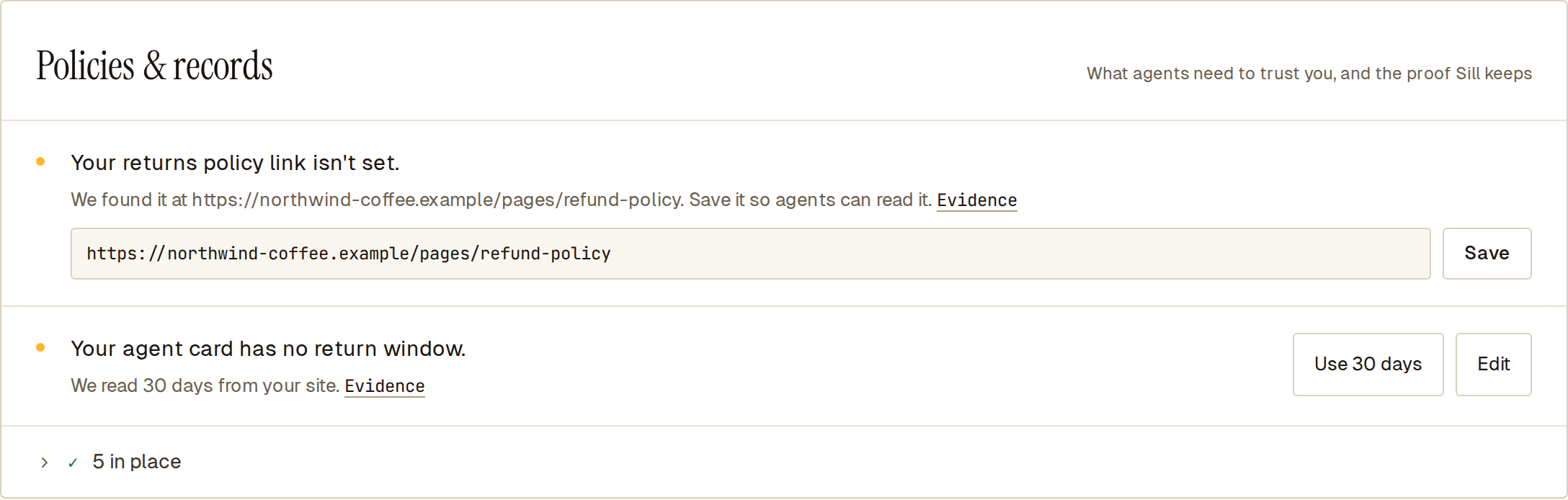 A missing returns link, prefilled with the page Sill found, and a return window you can apply in one click.
Edit your agent card
Section titled “Edit your agent card”The Agent card row has an Edit card button. It opens the agent card editor in a drawer, so you can change fields such as your business name, description, price range, shipping zones, return window and subscriptions without leaving the page. Only the fields you change are saved.
Edit llms.txt
Section titled “Edit llms.txt”The llms.txt row has an Edit llms.txt button. It opens the llms.txt editor as a drawer, with the current description, your custom sections and a live preview of the file agents will read. Saved changes reach https://{your-domain}/llms.txt (served by the Cloudflare Worker or WordPress plugin) within a few minutes.
Rerun the checks
Section titled “Rerun the checks”Click Check again in the header to rerun every check. The line below it shows Checked {time} ago · Rescans {cadence}, and Updating… while fresh results load.
Click the cadence word to pick how often Sill reruns the checks on its own:
- manually — only when you click Check again.
- daily — every 24 hours.
- weekly — once a week.
- monthly — every 30 days.
Run your first check
Section titled “Run your first check”A brand-new site has no snapshot yet. The headline reads Not checked yet., the verdict ring is dim, the goal cards show — of —, and the page shows a Run your first check card with a short line:
We will read your site like an agent would and report what we find. Nothing is shared.
Click Run first check to fill in every section. After that, the page shows the results of the latest check until the next one runs.
See also
Section titled “See also”- Public readiness scan — the same signals, measured anonymously from
sill.sowithout signing in. Useful for a before-and-after check or to share a dated snapshot of a prospect’s site. - Agents — who actually visited, what they did, and how well they identified themselves.
- Rules — the rules Sill evaluates on every signed mandate.
- Audit log and export — the signed record of every agent decision.