Site settings
Settings holds everything about one site: its install, skills, connections and allowed origins. Open Settings in the top navigation. It applies to the site selected in the site switcher at the top left.
The tabs are General, Install, Skills, Integrations and Origins.
General
Section titled “General”Change the site’s display name. Owners and admins can save; reviewers and viewers see it read-only.
Owners and admins also see Returning visitors (Recognise people who come back). Switch it on to recognise people who come back to your site and see each one’s timeline under PEOPLE in Activity. It is off by default and set per site; see Returning visitors.
Install
Section titled “Install”How Sill reaches your site, top to bottom:
- How Sill is installed — what reaches Sill from this site right now: browser visitors, crawlers that skip JavaScript, your agent card and files, and your store. Check this first when you want to know if the install is working. Click RE-CHECK after a change. See What each install covers.
- Install Sill on your site — deploy the Cloudflare Worker by pasting an API token (then Redeploy or Disconnect it), or download the Worker script or the WordPress plugin to install yourself.
- Endpoint — the install snippet with your site key and proof token, Rotate key (owners and admins), and the addresses agents use: your agent card URL and its
<link>tag, the catalog URL, the MCP endpoint and UCP checkout (owners and admins). - Protocol support (inside Endpoint) — the protocols Sill speaks for this site and the current status of each. See Protocols.
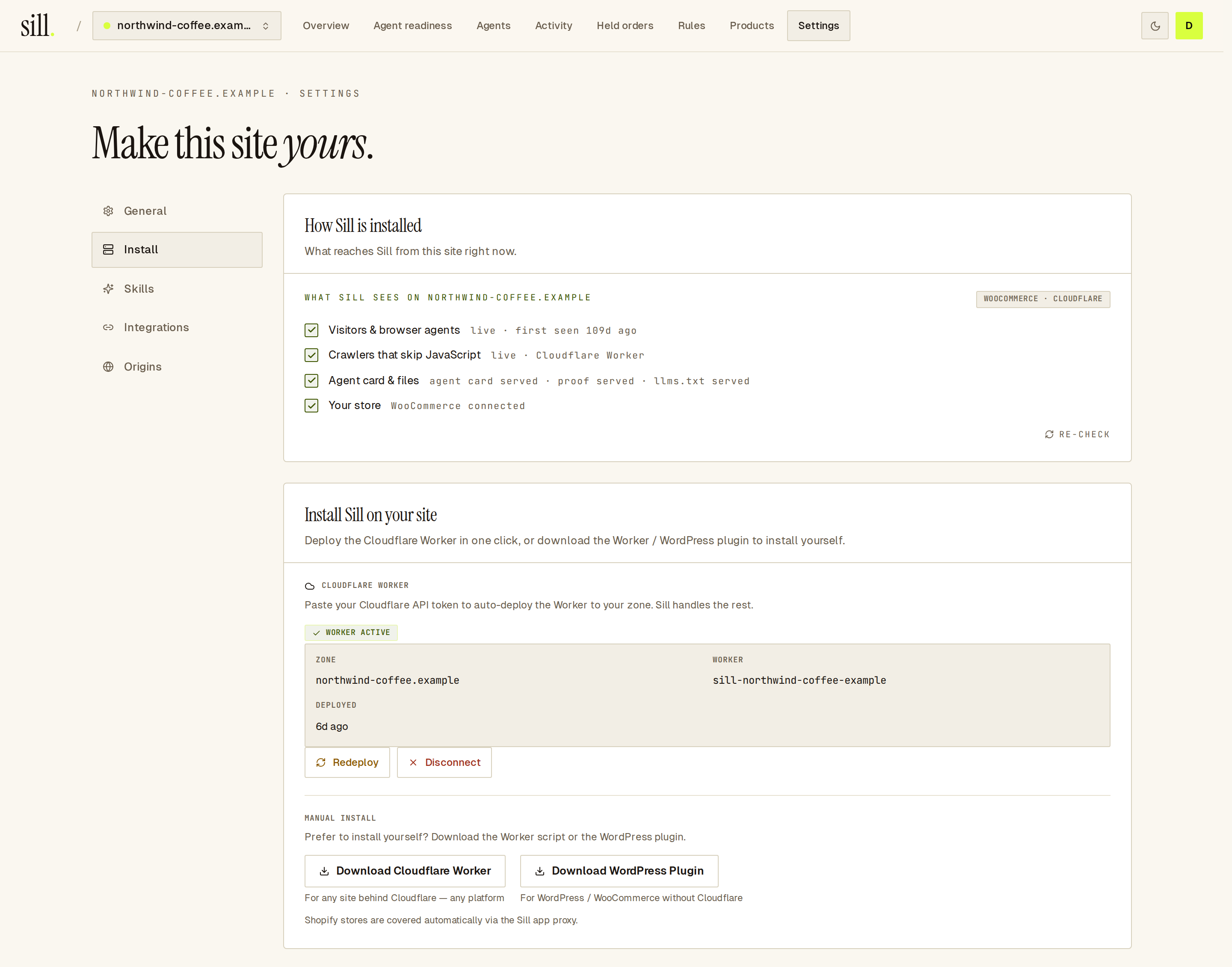 The Install tab starts with what reaches Sill, then the install actions.
Skills
Section titled “Skills”Owners and admins turn skills on or off for this site (reviewers and viewers see the list read-only): the seven defaults (Browse catalog, Check availability, Place order, Order status, Track shipment, Request refund, Recommend) and any custom skills you added. Each skill shows a status: LIVE, NOT LIVE, COMING SOON, VERIFY DOMAIN or DISABLED. A skill that is on but NOT LIVE says what it still needs, such as a connected payment rail.
Below them, Business skills lets you give agents a link to your pricing, sign-up, demo, booking, support, status or trust page; see Business skills.
See Skills and Custom skills for how skills work and how to add one.
Integrations
Section titled “Integrations”One section per connection, each with its status and a connect or Disconnect button. Only owners and admins can connect, disconnect or change a connection; reviewers and viewers see the status read-only.
- Shopify — enter your
.myshopify.comstore domain and click Connect Shopify. Connecting verifies the domain when the store’s domain matches your site, serves your agent card through the Sill app, syncs your catalog and lets agents look up orders. - Stripe — connect your Stripe account so Sill can authorize charges on signed agent orders. The section shows Test mode or Live mode, and under PAYMENT RAIL a Turn rail off / Turn rail on switch that stops or resumes charging agent orders through Stripe without disconnecting.
- WooCommerce — paste your store’s REST API keys so agents can read your catalog and orders. Checkout for WooCommerce stores goes through Stripe.
- Slack — a webhook that posts held-order alerts to one channel, with Send test message, Pause and Disconnect.
Below the connections, owners and admins choose which rail settles agent orders (Stripe or Shopify): an account default, and an override for this site. The Cloudflare Worker is managed on the Install tab.
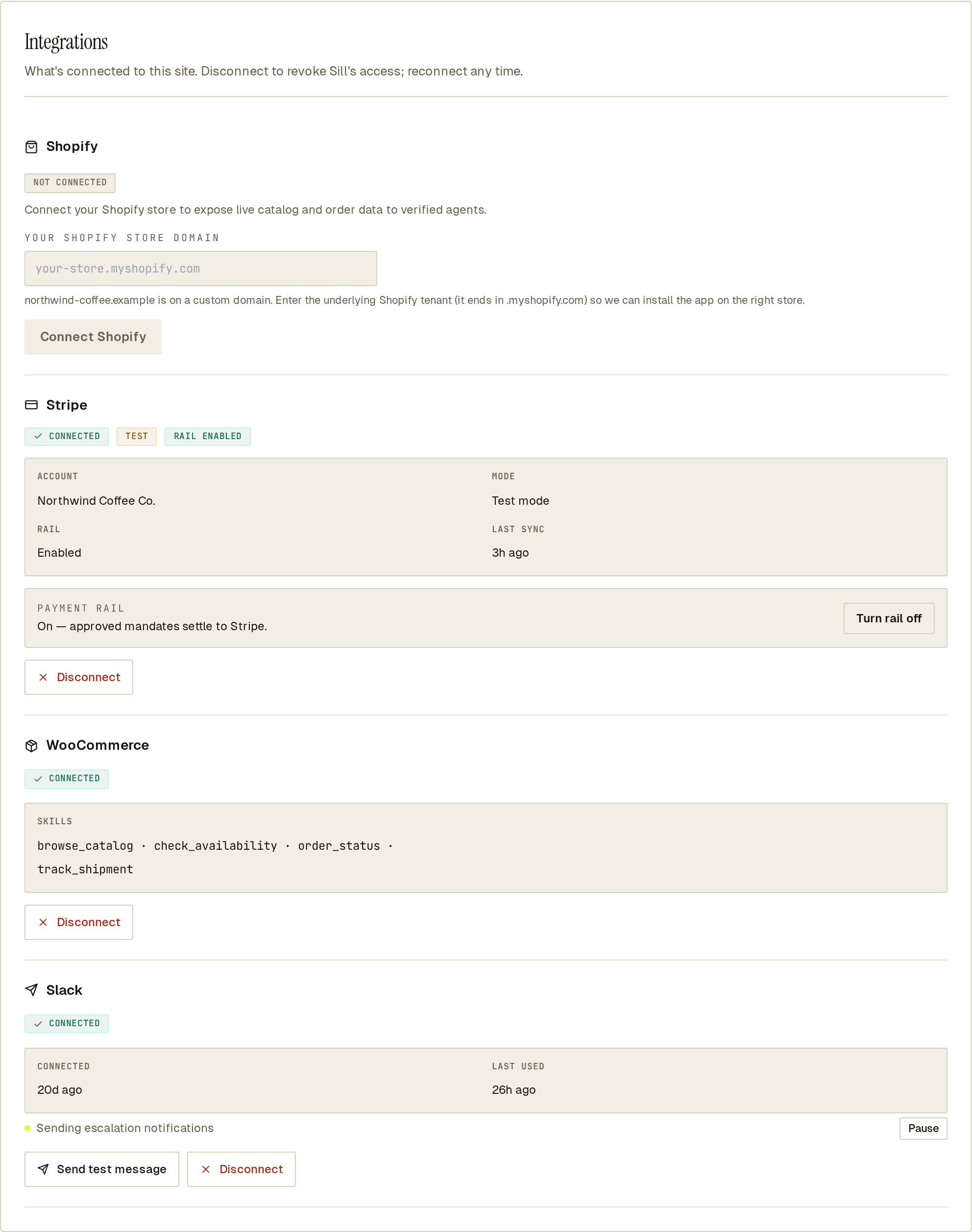 A WooCommerce store connected, Stripe in test mode with the rail enabled, and Slack sending held-order alerts.
See Connect payments for the step-by-step and Escalation alerts for how Slack and the email digest work together.
Origins
Section titled “Origins”Hosts where your Sill script ran that don’t match the site’s domain. Use it when your store runs on more than one host (subdomains are not included automatically, for example a checkout subdomain), or to spot someone copying your snippet.
- Unregistered origins — hosts the script has run on that are not on your allow-list, busiest first, with first- and last-seen times. Owners and admins click Add to allow-list for the ones that are yours.
- Allow-list — extra hosts you allowed, each with Remove. Your registered domain and its
www.version are always allowed and don’t need to be listed.
The list covers the last 30 days. Sill records visits from every host either way; adding a host to the allow-list marks its visits as your own so they stop being flagged. Leave hosts you don’t recognise, such as a site running a copy of your snippet, off the list.
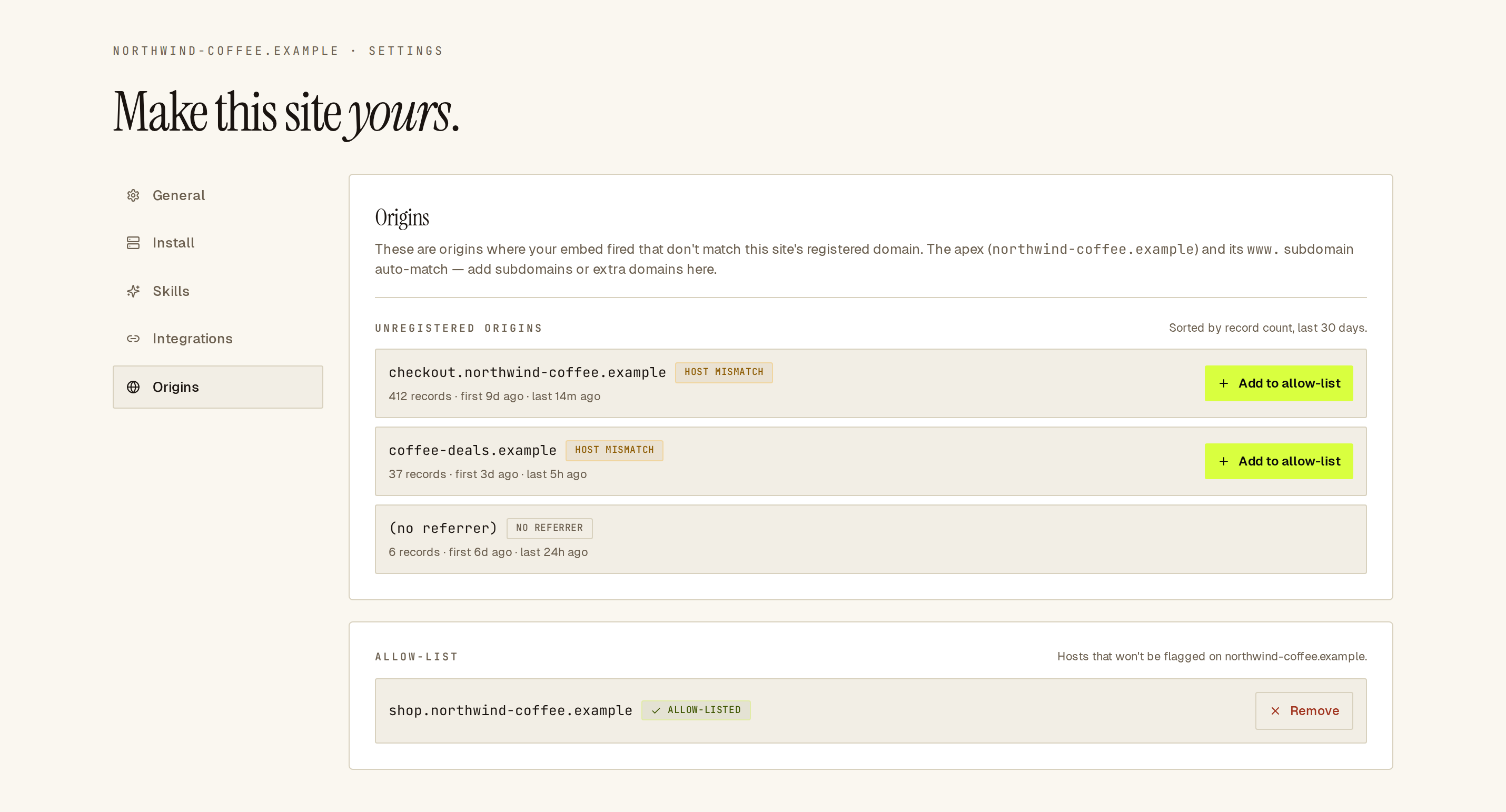 Add your own hosts to the allow-list; leave hosts you don’t recognise off it.
When there is something new here, the site’s card on the Sites overview shows an amber UNREGISTERED ORIGINS band.
See also
Section titled “See also”- Sites and onboarding — adding and verifying a site.
- Install coverage — what each install path covers.
- Protocols — the current status of every protocol Sill speaks.
- Account settings — account-wide controls, including the team, billing and notifications.