Manage client accounts
An agency manages clients from Agency Portal → Clients. Each client keeps its own Sill account; your agency gets access to it and can switch in to work on it.
There are two ways to add a client:
- Create account: you create the account and Sill invites the client’s owner.
- Link existing account: the client already uses Sill, and its owner approves your request.
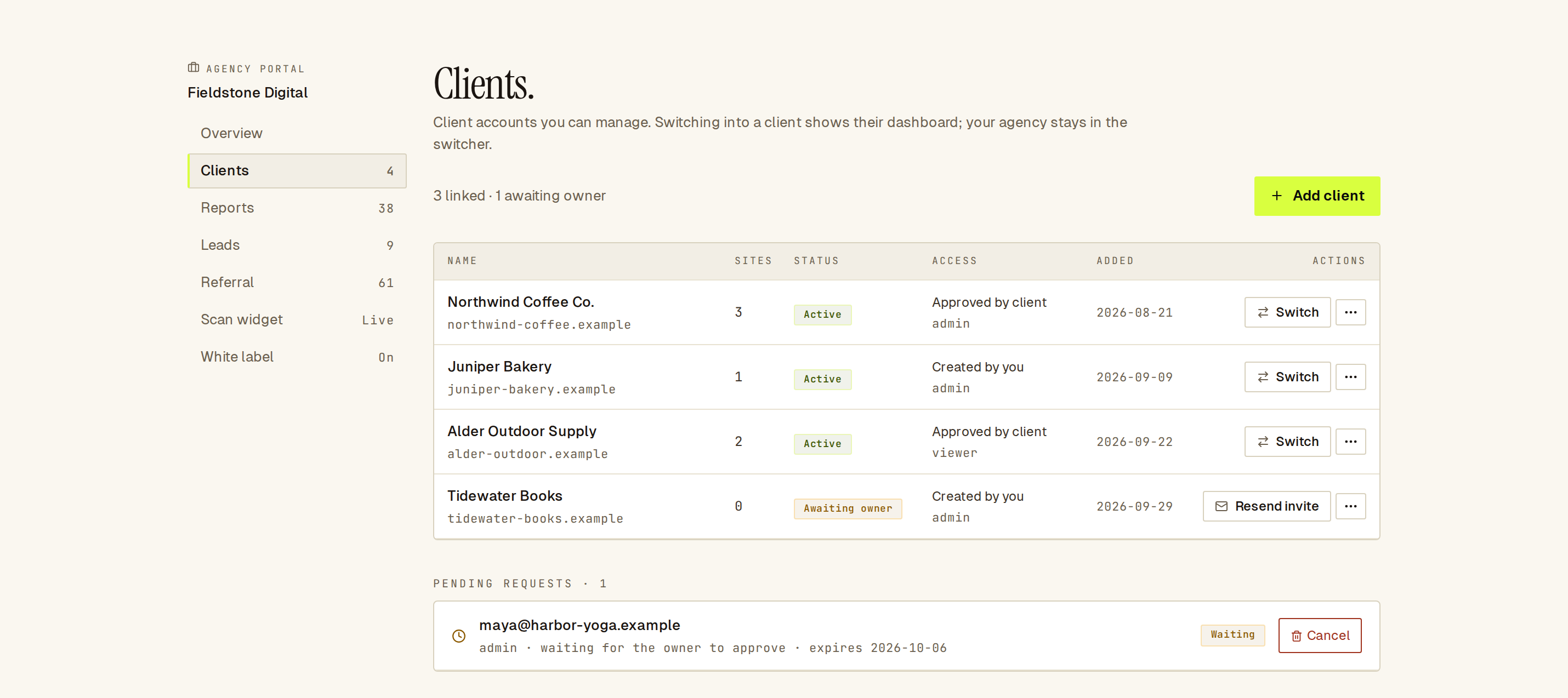 The Clients list. Tidewater Books is waiting for its owner to accept the invite.
How do I create an account for a client?
Section titled “How do I create an account for a client?”- Open Agency Portal → Clients and click Add client.
- Stay on Create account.
- Enter the Account name, the Primary domain (for example
northwind-coffee.com, nohttps://) and the Owner email. - Under Invite as, choose Owner or Admin for the person you are inviting.
- Click Create account.
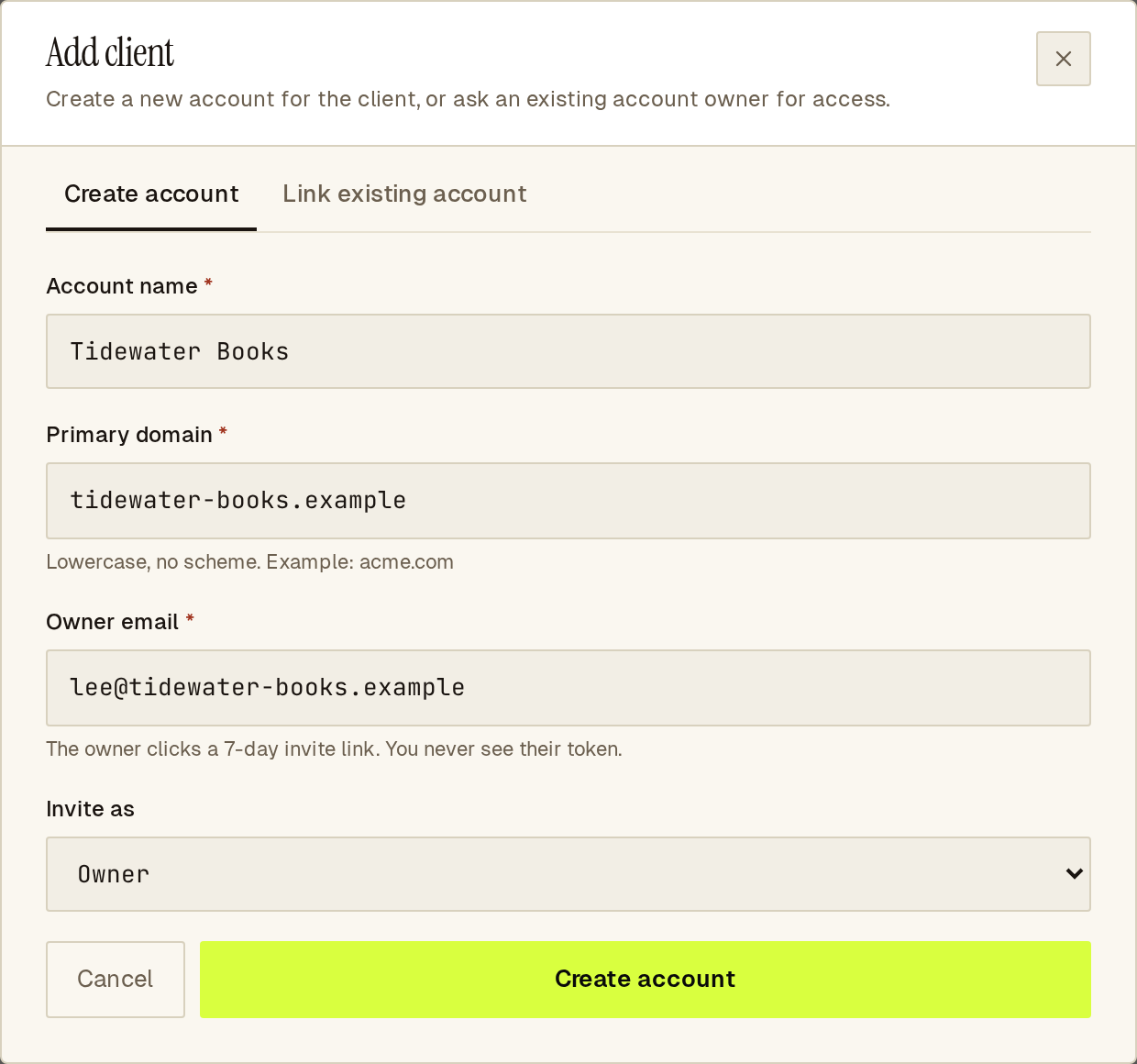 Create account: Sill emails the owner an invite that is valid for 7 days.
Sill emails the owner an invite link that is valid for 7 days. Until they accept it, the client shows as Awaiting owner and you cannot switch into it. Your agency gets admin access to the account.
If the email already belongs to a Sill account, use Link existing account instead.
How do I resend or cancel a client invite?
Section titled “How do I resend or cancel a client invite?”On a client marked Awaiting owner:
- Click Resend invite to send the invite email again.
- Click ⋯ → Cancel account to cancel the pending account. The invite stops working. Use this if you entered the wrong email, then create the client again.
How do I get access to a client’s existing Sill account?
Section titled “How do I get access to a client’s existing Sill account?”- Click Add client and open Link existing account.
- Enter the Client owner email: the address the owner signs in to Sill with. If you don’t have it, enter the client’s domain under Or client domain instead.
- Choose the Requested role: Admin, Reviewer or Viewer.
- Click Send request.
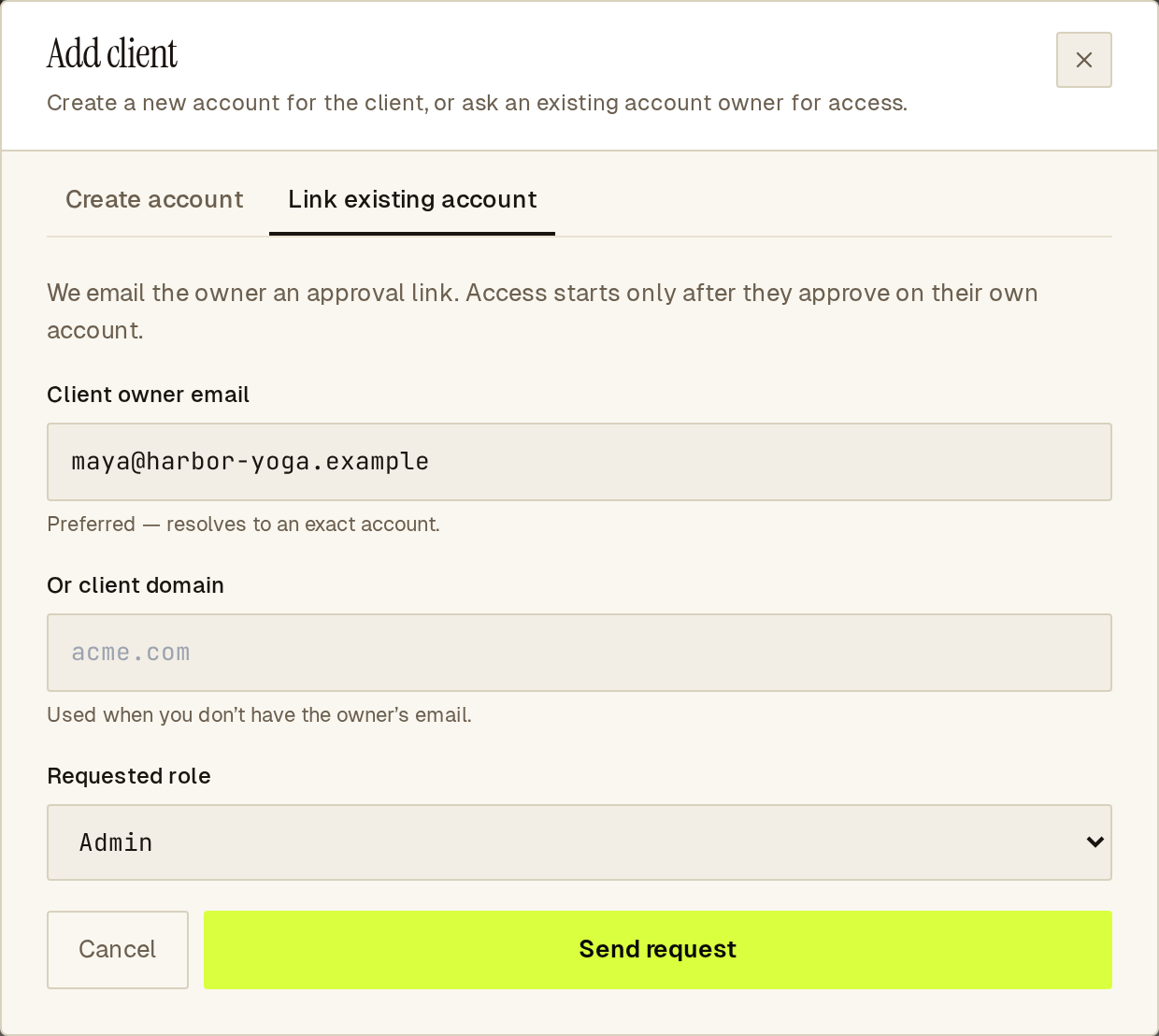 Link existing account: access starts only after the owner approves.
Sill emails the owner an approval link. The request expires after 7 days. It appears under Pending requests with a Waiting label until the owner approves it. Click Cancel there to withdraw it.
With an email, the approval email goes to that address, so ask the client for the address they sign in with. With a domain, Sill sends the request to the owners of the Sill account that has verified that domain. If no Sill account uses the domain, you see No Sill account uses that domain yet: create a client account instead, or ask the owner for their email.
The owner approves from their own account; see Approve or remove agency access.
What do the client statuses mean?
Section titled “What do the client statuses mean?”| Status | Meaning |
|---|---|
| Active | You can switch into the client. |
| Awaiting owner | You created the account and the owner has not accepted the invite yet. |
| Suspended | Access is paused. You cannot switch in. |
| Revoked | Access was removed. |
Access shows how the client was added (Created by you or Approved by client) and, underneath, the role your agency has in that client.
How do I switch into a client and back?
Section titled “How do I switch into a client and back?”The account switcher sits next to the Sill logo at the top of the dashboard. It lists your agency and every linked client.
- Click the account switcher.
- Pick a client. You can also click Switch on the client’s row in Clients.
Inside a client, you can pick another client from the same switcher to move straight to it.
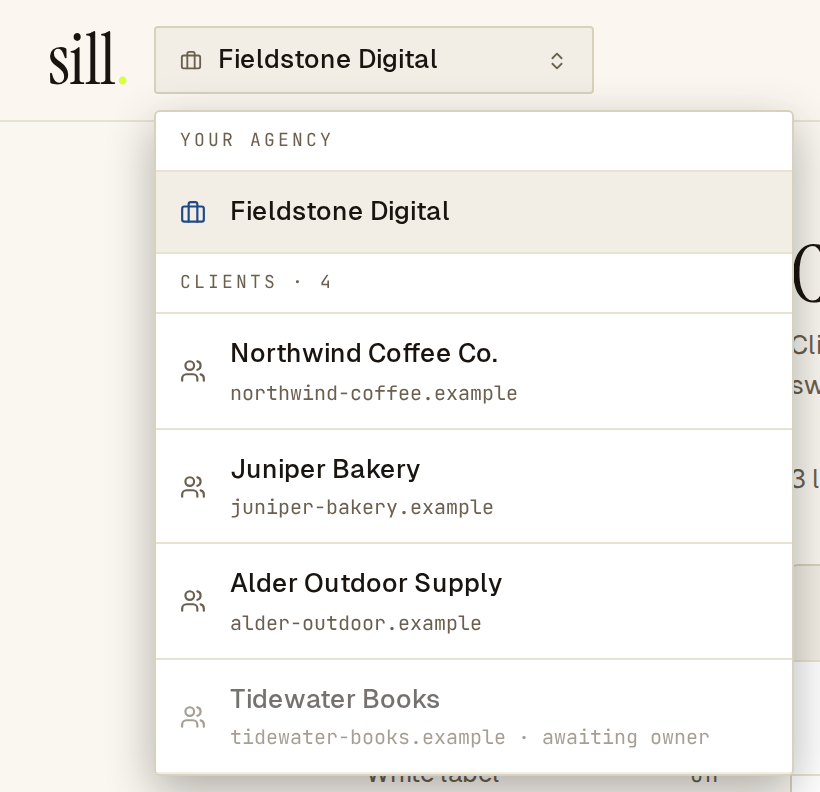 The account switcher from your agency account.
You land on the client’s sites. While you are inside a client, a blue bar reads Acting in {client} via {agency}, and the switcher shows CLIENT and the client’s name.
 The agency session bar stays at the top while you work inside a client.
To go back, click Return to {your agency} in the bar, or open the switcher and click Back to {your agency}. You return to Clients.
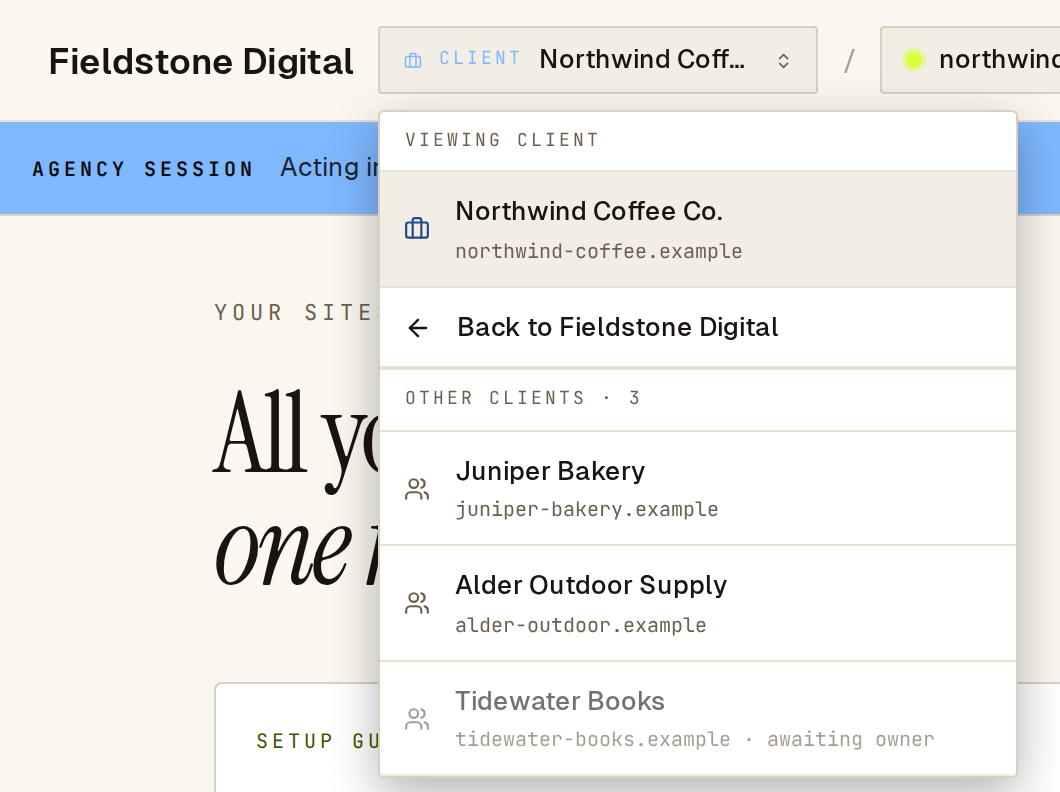 Inside a client, the switcher offers the way back and your other clients.
On a phone, the switcher is the first item in the menu.
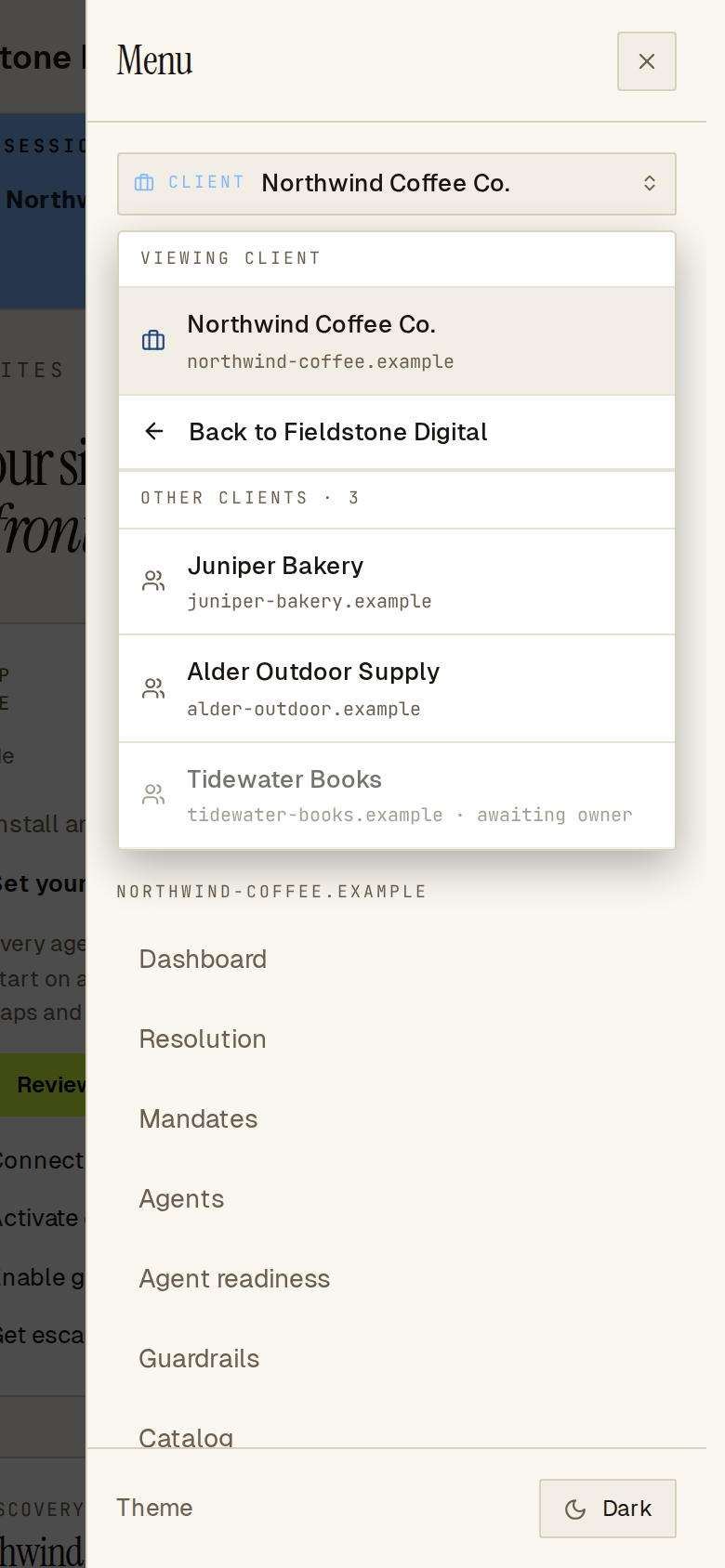 The switcher on a phone.
What can I do inside a client?
Section titled “What can I do inside a client?”You work with the role shown under Access in Clients. With Admin access you can work on the client’s sites as an admin does: onboarding and installs, skills, guardrails, catalog, agent readiness, agents and records. Reviewer and Viewer access follow the same limits as those roles.
Some things stay with the client’s own team, whatever your role:
- Billing, invoices and the team list.
- Approving or rejecting held orders.
- Payment settings and connecting or disconnecting stores, payment rails, Cloudflare and Slack.
- Rotating site keys, proof tokens and skill secrets.
- Deleting the account, and the client’s own Agency access, Security and Notifications settings.
Those tabs and controls are hidden while you are inside a client. The Agency Portal itself is also unavailable until you return to your agency.
Only owners and admins of the agency account can switch into clients.
How do I remove a client?
Section titled “How do I remove a client?”Click ⋯ on the client’s row, choose Remove access and confirm. Your agency loses access right away. To work with the client again, send a new request from Add client.
Frequently asked
Section titled “Frequently asked”Does the client see my agency’s branding in their dashboard? No. If you have white label, your name and logo replace the Sill logo in the top bar only for your agency’s members while they are inside the client.
Can I switch from one client straight into another? Yes. Open the switcher and pick the client from Other clients. You don’t need to return to your agency first.
Who can approve a request? The client’s owner, signed in to their own account.