Payments and invoices
Your card, renewal date and invoices are all in Account settings. Card payments are handled by Stripe.
Update your card
Section titled “Update your card”- Open Account settings → Billing.
- Select Update card.
- Change the card on Stripe’s page, then come back to the dashboard.
If you have never paid for a plan, there is no card yet. You add one the first time you choose a paid plan.
See when you renew
Section titled “See when you renew”The YOUR ACCOUNT card on the Billing tab shows the next renewal date and whether you are billed monthly or yearly.
All your paid sites renew together on that date.
Find an invoice
Section titled “Find an invoice”- Open Account settings → Invoices.
- Select View to open an invoice, or PDF to download it.
The same list is at the bottom of the Billing tab. Invoices appear after your first payment. Until then the list is empty.
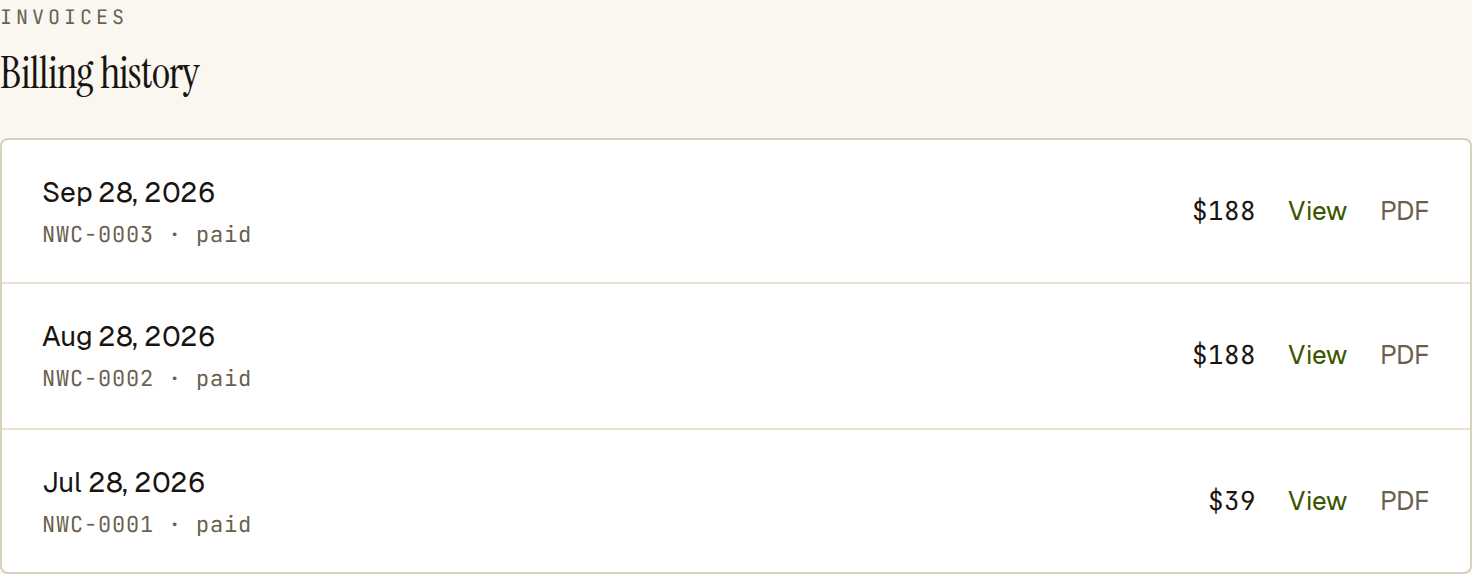 Each invoice has a View link and a PDF download.
Fix a failed payment
Section titled “Fix a failed payment”When a payment fails, the Billing tab shows PAST DUE and “A payment is overdue. Update your card to keep your plans.”
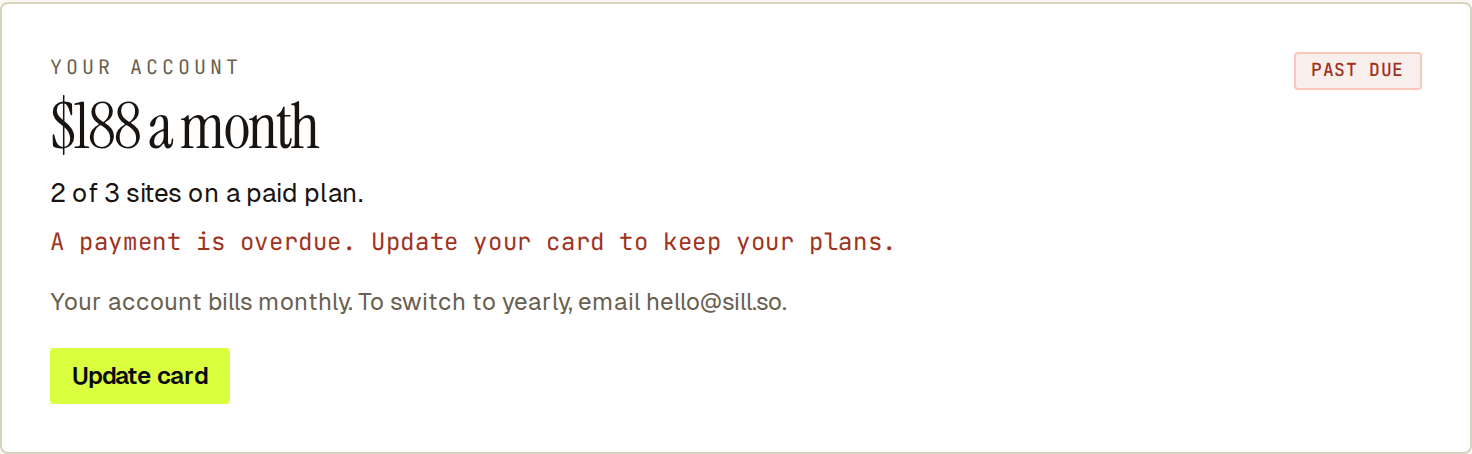 A failed payment: update the card from this card.
- Select Update card and enter a card that works.
- Stripe retries the payment on the new card.
Your plans stay on while the payment is overdue. If it stays unpaid, your paid plans end and those sites move to Free. Your site keeps working, and your signed records stay available to export.
Questions about a charge
Section titled “Questions about a charge”Email [email protected] with the invoice number.