Use Sill from Claude or ChatGPT
You can use Sill from the assistant you already talk to. Connect Claude or ChatGPT once with your Sill sign-in and ask it things like “which AI agents visited my store this week?” or “block that address for a day”. There is nothing to copy or paste, and you choose exactly what the assistant may do.
What you can ask
Section titled “What you can ask”- Your sites. “Which of my sites are verified?” With your permission: “Add shop.example.com to Sill.”
- Install. “What’s the next install step for example.com?” With your permission: “Check whether the snippet is live now.”
- Agent traffic. “Which AI agents read my product pages this week?” “What did they search for?” “Summarise last week’s agent traffic.”
- Security. “Any new threat alerts today?” With your permission: “Block that sender for 24 hours.”
- Held orders. “Which agent orders are waiting for me?”
- Readiness. “How ready is example.com for agents?” With your permission: “Run the check again.”
- Custom skills. With your permission: “Add a skill called Book a tasting that calls https://example.com/hooks/tasting.”
- Audit log. “Find the order Acme’s agent placed on Tuesday.” With your permission: “Give me the signed bundle for that record.”
Agencies can switch the assistant between their own account and the client accounts they manage without reconnecting.
Connect
Section titled “Connect”The server address is https://api.sill.so/mcp. Each assistant has its own menu for adding it; the names below are the ones in use today.
Claude Code. In a terminal:
claude mcp add --transport http sill https://api.sill.so/mcpThen type /mcp, choose sill and sign in. A browser tab opens on the Sill approval page.
Claude.ai, Claude Desktop or Claude mobile. Open Settings → Connectors and choose Add custom connector. Name it Sill, paste the server address, leave the client id fields empty so Claude uses its own identity, and click Add. Then click Connect; the Sill approval page opens.
ChatGPT. In ChatGPT on the web, open Plugins, click the plus button and choose Add custom MCP server. Name it Sill, paste the server address under Connection, choose OAuth, accept the risk notice and click Create as a plugin. Install it and sign in on the Sill page that opens. In a chat, type @ and pick Sill. ChatGPT asks you to confirm each action that changes something.
Other assistants. Sill’s server is a standard MCP server with OAuth sign-in, so it is not tied to one vendor. If your assistant can add a remote MCP server and sign in with OAuth, add it the same way: custom MCP server, the address above, OAuth. Assistants other than Claude and ChatGPT register themselves with Sill on first connect and get read-only access: they can look things up but cannot block, rerun checks or act on orders. We list an assistant by name here once we have tested it ourselves.
On the approval page, sign in to Sill if you are not already, tick the permissions you want, and click Allow.
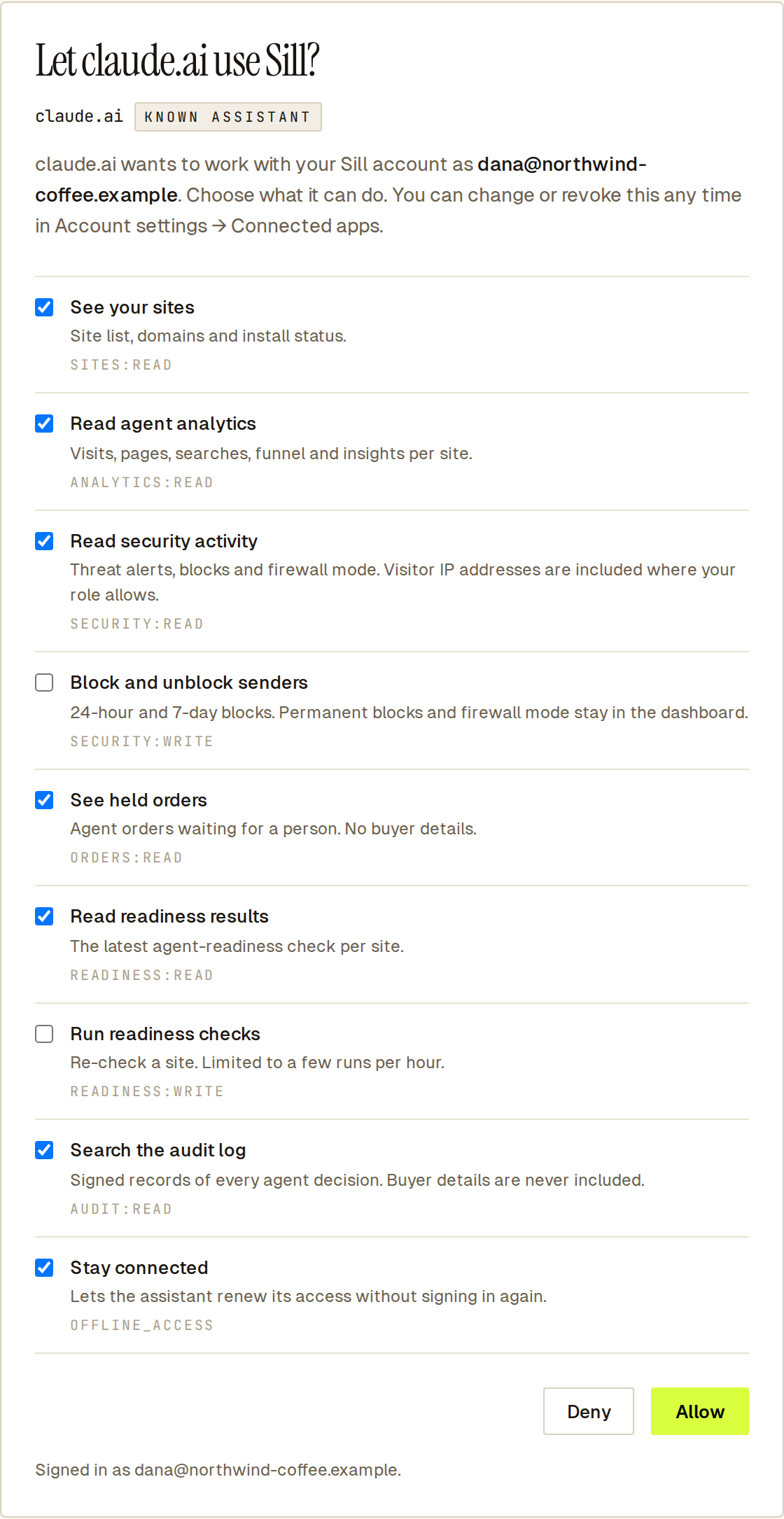 Tick only what you want the assistant to do. Write permissions start unticked.
Choose permissions
Section titled “Choose permissions”| Permission | What the assistant can do |
|---|---|
| See your sites | Site list, domains and install status. |
| Add a site | Add a new domain to this account. You confirm each add in chat before Sill writes. |
| Read agent analytics | Visits, pages, searches, funnel and insights per site. |
| Read security activity | Threat alerts, blocks and firewall mode. Visitor IP addresses are included where your role allows. |
| Block and unblock senders | 24-hour and 7-day blocks. Permanent blocks and firewall mode stay in the dashboard. |
| See held orders | Agent orders waiting for a person. No buyer details. |
| Read readiness results | The latest agent-readiness check per site. |
| Run readiness checks | Re-check a site. Limited to a few runs per hour. |
| Create and update custom skills | Add or change a custom skill on a site. Publishing an enabled skill requires a confirmation step the server issues in chat before Sill writes. |
| Search the audit log | Signed records of every agent decision. Buyer details are never included. |
| Open a signed audit bundle | A link that downloads the signed bundle under your own sign-in. The assistant never receives the file. |
| Switch between the accounts your agency manages | Act inside a linked client account. Blocks and order decisions stay in the dashboard. |
| Stay connected | Lets the assistant renew its access without signing in again. |
Only owners and admins can grant Add a site, Block and unblock senders, Create and update custom skills, Open a signed audit bundle and the agency switch; for reviewers and viewers those rows are not offered. See held orders is for owners, admins and reviewers. Any member can let the assistant rerun a readiness check; for owners and admins the same permission also lets it check whether a site’s install is live. Beyond that, the assistant acts with your role: an admin’s assistant has admin rights, a viewer’s assistant sees what a viewer sees.
Write permissions are never ticked for you. Tick only the ones you want the assistant to use.
An assistant never approves or rejects a held order. Every held order it shows you comes with a link to that order in the dashboard, where you decide with your own sign-in. Nothing changes until you act there. The assistant can check the outcome afterwards.
Add a site from chat
Section titled “Add a site from chat”With Add a site, ask your assistant to add a domain. Its first answer never adds anything: Sill returns a confirmation step that names the domain, and the assistant asks you to confirm in the chat. Only when you say yes does it call again and Sill create the site. The assistant never receives your site key. It gives you a link to the site in the dashboard, where you copy the install snippet.
With See your sites, the assistant can then tell you the one next install step Sill recommends for that site. With Run readiness checks, an owner’s or admin’s assistant can check that the snippet or proof file is live and mark the site verified, the same check as Verify in onboarding. It is limited to a few runs per hour per site. See Sites and onboarding.
Create custom skills from chat
Section titled “Create custom skills from chat”With Create and update custom skills, your assistant can add a custom skill to a site, as Advertised (listed, no endpoint) or Live webhook (Sill calls your endpoint). A webhook endpoint must be an HTTPS URL on the site’s verified domain. For a Live webhook skill the assistant can also change the endpoint.
A skill made or changed from chat is always saved turned off. Turning it on publishes it on your signed agent card and in your MCP server’s tool list, so the first request to turn it on never publishes: Sill returns the exact entry it would publish (skill id, name, kind and endpoint host), and the assistant asks you to confirm in the chat. If the skill changes in between, Sill asks again. Turning a skill off needs no confirmation. The assistant never receives a webhook secret: before you turn on a Live webhook skill made from chat, open Settings → Skills in the dashboard and use Rotate secret to get one for your endpoint.
Open a signed audit bundle
Section titled “Open a signed audit bundle”With Open a signed audit bundle, an owner’s or admin’s assistant can give you a link to the signed bundle for one audit record. The link opens the record in the dashboard, and the bundle downloads there under your own sign-in. The assistant never receives the file. See Audit log and bundle export.
Agencies: work in a client account
Section titled “Agencies: work in a client account”With Switch between the accounts your agency manages, ask the assistant to list your accounts and switch to a client; later questions then use that client’s sites until you switch back. The assistant should tell you before it switches. Inside a client account the assistant can read that client’s sites and rerun readiness checks. It cannot block or unblock senders, add a site, verify an install, or create or publish a skill there; do those in the dashboard. Held orders are always decided in the dashboard.
See and revoke connections
Section titled “See and revoke connections”Open Account settings → Connected apps to see every connection: the assistant, its permissions, who connected it, which account it is using, and when it was last used. Owners and admins see everyone’s connections; others see their own.
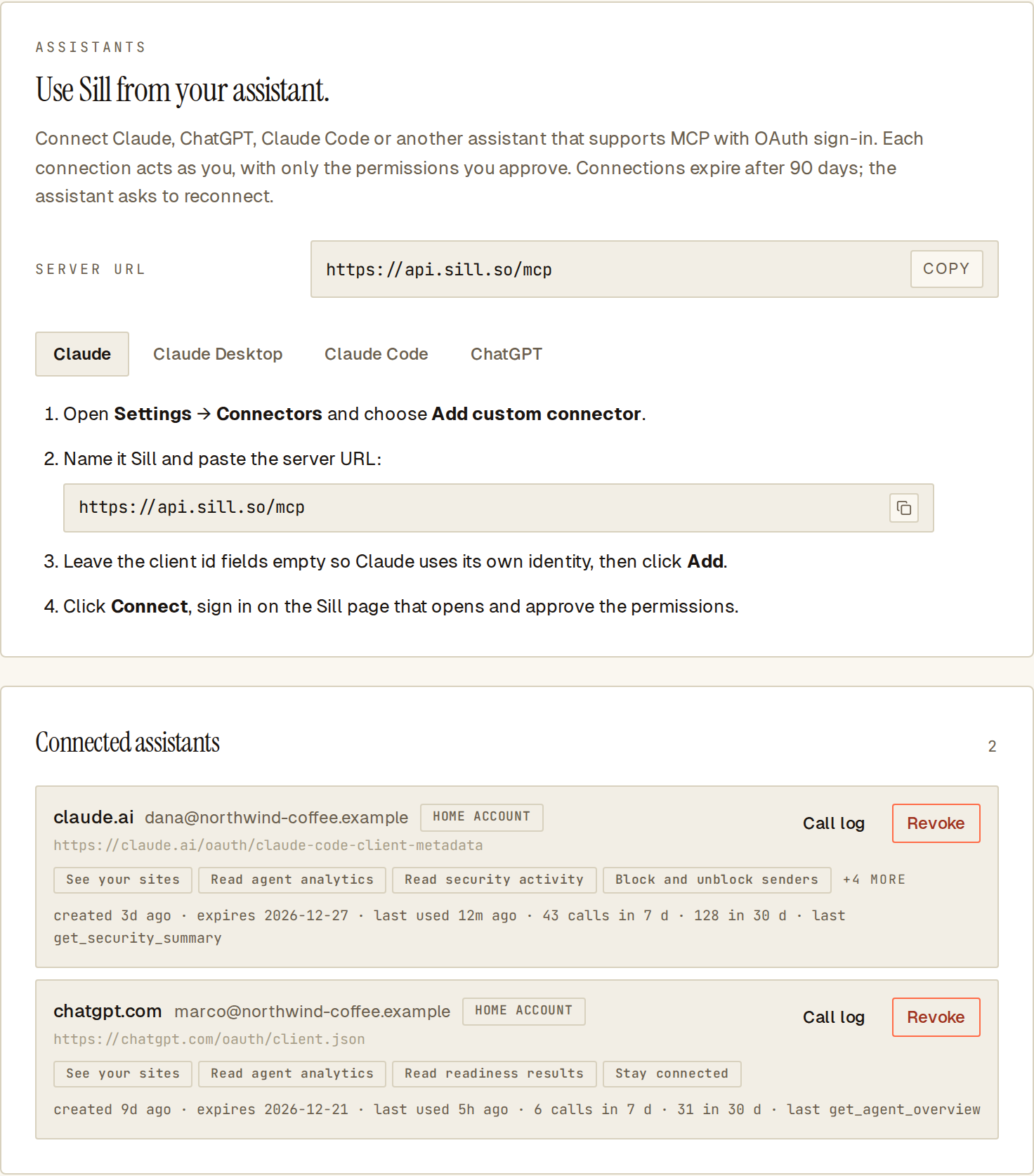 Every connection shows what it may do and who approved it. Revoke ends it within a minute.
Click Log on a connection to see every tool call it made in the last 90 days: when, which tool, which site, how it ended and how long it took. You can search by tool, site or outcome, sort any column and page through the list. The log never shows what an assistant asked for or what it got back; Sill does not keep arguments or results, only that the tool ran and how it ended.
Click Revoke to end a connection. Signing a member out everywhere, or deactivating them, ends their connections too. Every change an assistant makes shows up in Security → Change trail marked as made through that connection, so you can always tell assistant changes from your own.
What an assistant can never do
Section titled “What an assistant can never do”- Make a permanent block, change allow-lists or change firewall mode.
- See buyer details, or receive audit bundles, reports or invoices. An audit bundle link opens the dashboard, and the download happens under your own sign-in.
- Change billing, invite teammates, change roles, or sign anyone out.
- Delete the account or anything in it, including sites and skills.
- Publish a skill, or add a site, without you confirming in the chat first.
Good to know
Section titled “Good to know”- An assistant can make about 60 requests a minute. Faster than that, it gets a short “try again” message.
- A connection stays signed in for up to 30 days without use, and ends after 90 days. The assistant then asks you to reconnect.
- Sill emails the person who approved a connection as soon as it is made, and again a week before it ends. The first email names who approved it, the IP address and approximate location it was approved from, the device, the time in that location, the accounts the connection can reach, when it expires and the connection id, with a button that opens the revoke confirmation. If you get a connection email you did not expect, revoke the connection and sign out your other sessions from the Security tab.
- Claude and ChatGPT are the assistants Sill recognises by name and can grant write permissions to. Any other assistant connects read-only.
Troubleshooting
Section titled “Troubleshooting”Sill keeps asking me to sign in. The connection was revoked, or you were signed out everywhere. Reconnect from the assistant.
A tool is missing in my assistant. The connection was approved without that permission. Revoke it under Connected apps and connect again with the permission ticked. Some tools also need a role: adding sites, skills, install checks and audit bundles are for owners and admins, and held orders for owners, admins and reviewers. Assistants other than Claude and ChatGPT never get the write tools.
My assistant says it cannot register or sign in. It may need a client id and secret typed in by hand, which Sill does not support yet. Assistants that register themselves, or that publish their own identity like Claude and ChatGPT, work.
The approval page says the request expired. The page is valid for 10 minutes. Start again from the assistant and finish the approval in one go.
The assistant says it cannot add a site, a skill or a block. It is working inside a client account. Ask it to switch back to your own account, or make the change in the dashboard.
I opened the sign-in email and nothing happened. Open the email link in the same browser as the approval tab. Sill picks the sign-in up there and shows the permissions.
See also
Section titled “See also”- Account settings, where Connected apps lives.
- Held orders, the queue your assistant can list.
- Block a sender, the same block your assistant can make.
- Custom skills, the skills your assistant can create.
- MCP server, the different server on your store that shopping agents call.