Attack detection
Attack detection tells you who is probing your store and whether any of it worked. Sill checks every request your Cloudflare Worker or WordPress plugin sees against 17 kinds of attack, groups what it finds by sender, and lists the senders under Security → Attackers, newest first. The Security summary shows the same period at a glance.
Detection reads only the request itself: the method, the address and query string, the user agent and the referring page. It never reads what a visitor submits in a form or a request body.
What Sill looks for
Section titled “What Sill looks for”| In the list | What the sender did |
|---|---|
| Looked for secret files | Asked for files that hold passwords and keys, such as /.env, /.git/config or /wp-config.php. |
| Looked for backup files | Asked for backup copies and database dumps, such as /wp-config.php.bak or /site.sql. |
| Probed debug pages | Asked for pages that reveal server details, such as /phpinfo.php. |
| Probed a vulnerable plugin | Asked for a file from a plugin with a known hole. |
| Looked for webshells | Asked for a backdoor script a previous attacker might have left, such as /shell.php. |
| Tried to run a script in uploads | Asked your uploads folder to run a script. |
| Tried a disguised script file | Asked for a script hidden behind a second extension, such as photo.jpg.php. |
| Tried path traversal | Used ../ to reach files outside your site. |
| Tried SQL injection | Put database commands in the address or query. |
| Tried shell commands | Put server commands in the address or query. |
| Tried template injection | Put template code in the address or query. |
| Tried Log4Shell | Sent the Log4Shell attack string. |
| Used a credential scanner | Identified itself as a tool built to find leaked keys. |
| Listed WordPress users | Asked WordPress for its list of user names, a first step towards guessing passwords. |
| Repeated login attempts | Hit your admin login page again and again in a short time. |
| Scanned for missing pages | Asked for many pages that don’t exist in a burst, looking for something that does. |
| Posed as a known crawler | Used a known crawler’s name without being it. See Impostors and scanners. |
The Attackers list
Section titled “The Attackers list”Open Security → Attackers. The list shows probe campaigns first, then ATTACKS: one card per sender.
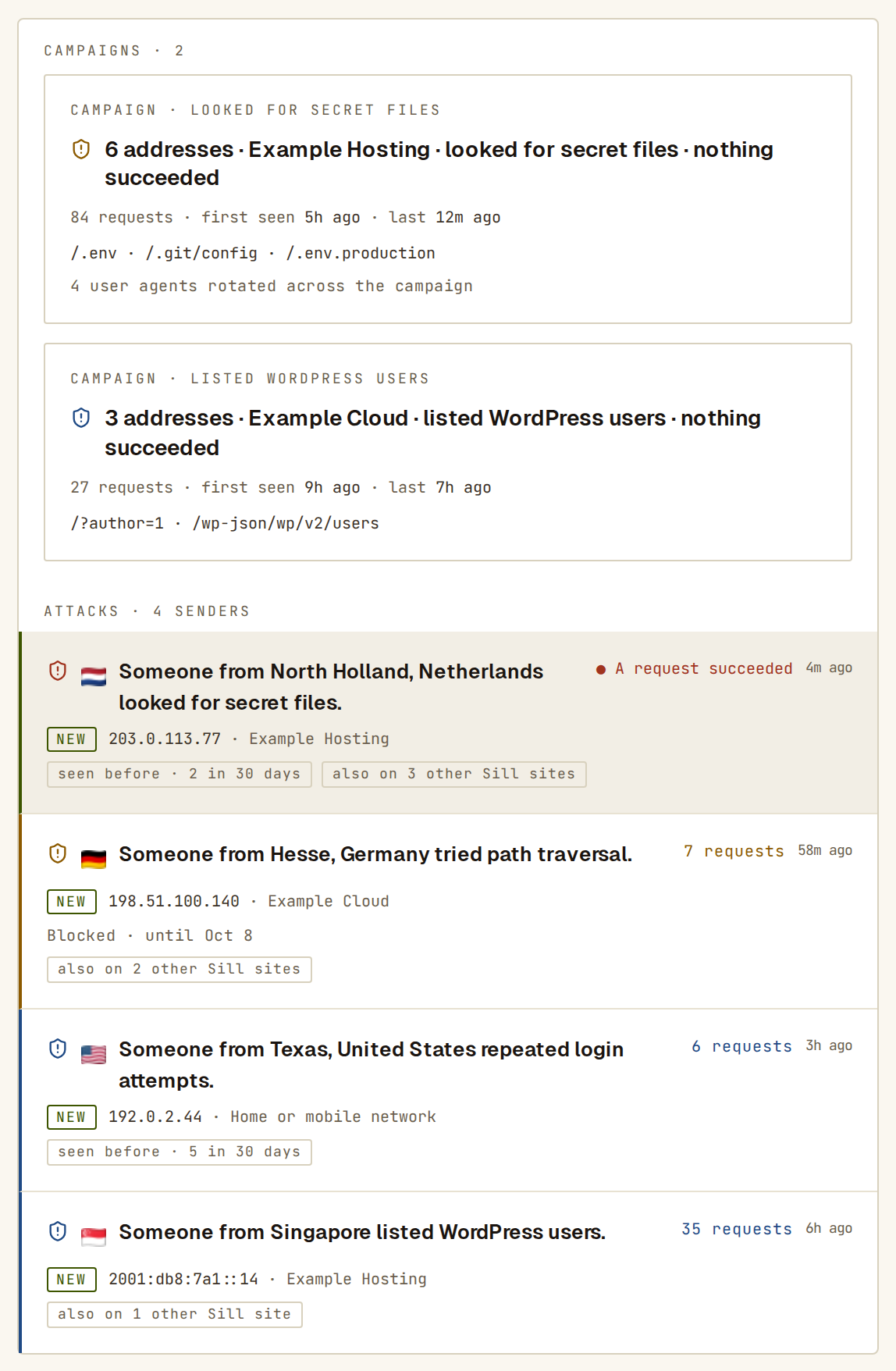 One card per sender. Red text means at least one request got a success response.
Each card shows:
- how serious it is, from the icon (critical, high, medium or low);
- where the sender is, with a flag, and what they tried, in one sentence, for example Someone from Hesse, Germany tried path traversal.;
- the address and its network (a hosting company, or Home or mobile network);
- how many requests, and how long ago;
- A request succeeded in red when any of their requests got a success response from your site;
- Blocked with the end date, when you have blocked the sender;
- NEW next to the address when the sender was first seen on your site in the last 24 hours;
- seen before · N in 30 days when this address raised alerts here before the current window;
- also on N other Sill sites when the same address probed other Sill-protected sites in the last 24 hours — this is a count only, never a list of sites.
Above the list:
- Search address or network narrows the list, for example to
203.0.113orDigitalOcean. - ADDRESSES and NETWORKS switch between one card per sender and one row per network, with how many addresses and requests each network sent. Click a network to list its addresses.
- GOT THROUGH shows only senders with a request that got a success response.
- BLOCKED opens your block list.
A sender’s details
Section titled “A sender’s details”Click a card to open the sender’s panel.
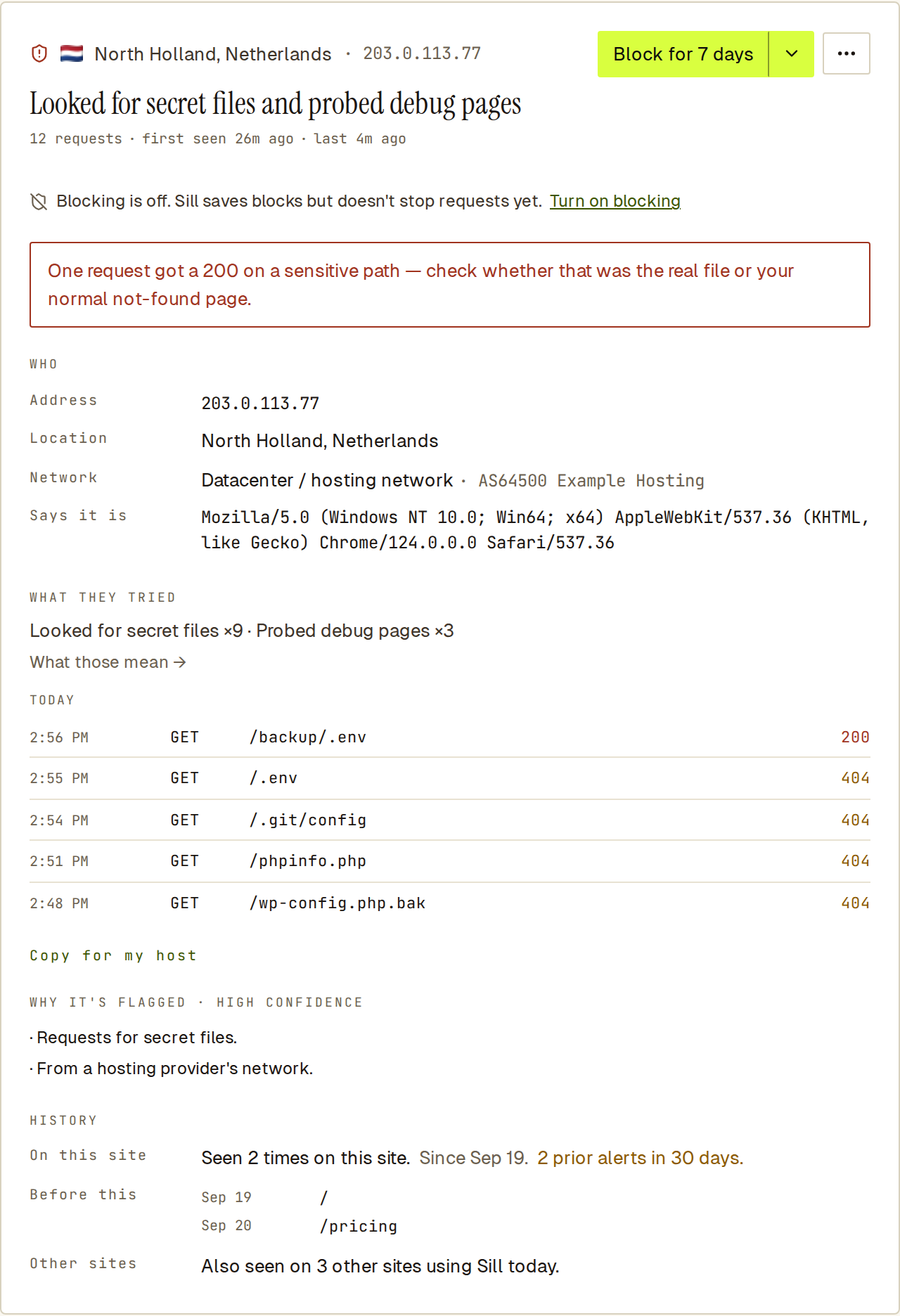 When a request succeeded, the panel says so first, and the request list shows which one.
- WHO — the address, location, network and the user agent it sent.
- WHAT THEY TRIED — the summary line, a What those mean → disclosure that explains each attack class in plain language, then each request with the time, the address it asked for and the response your site gave. A
200next to a secret file means your server returned something: check whether that was the real file or your normal not-found page. - Copy for my host — one click copies a plain-text block (address, location, network, first and last seen, each request with its time, method, path and status) you can paste into a hosting support ticket.
- WHY IT’S FLAGGED — Sill’s confidence and the reasons, such as From a hosting provider’s network.
- HISTORY — whether the sender visited before, and Other sites: how many other sites using Sill it was seen on in the last 24 hours.
From the panel you can block the sender, trust the address or ignore it for 30 days.
What to do first
Section titled “What to do first”- Open any card marked A request succeeded and check the file it names on your server. Remove or protect it.
- Turn on Attack paths so requests for those files are refused before they reach your server.
- Block senders that keep coming back.